Build your store
Sell in several languages and currencies
Add languages and markets to your store, translate every product and page and show prices in other currencies at TCMB or ECB rates or at your own rate. Translations move in bulk with CSV.
Tools for selling internationally
Store languages
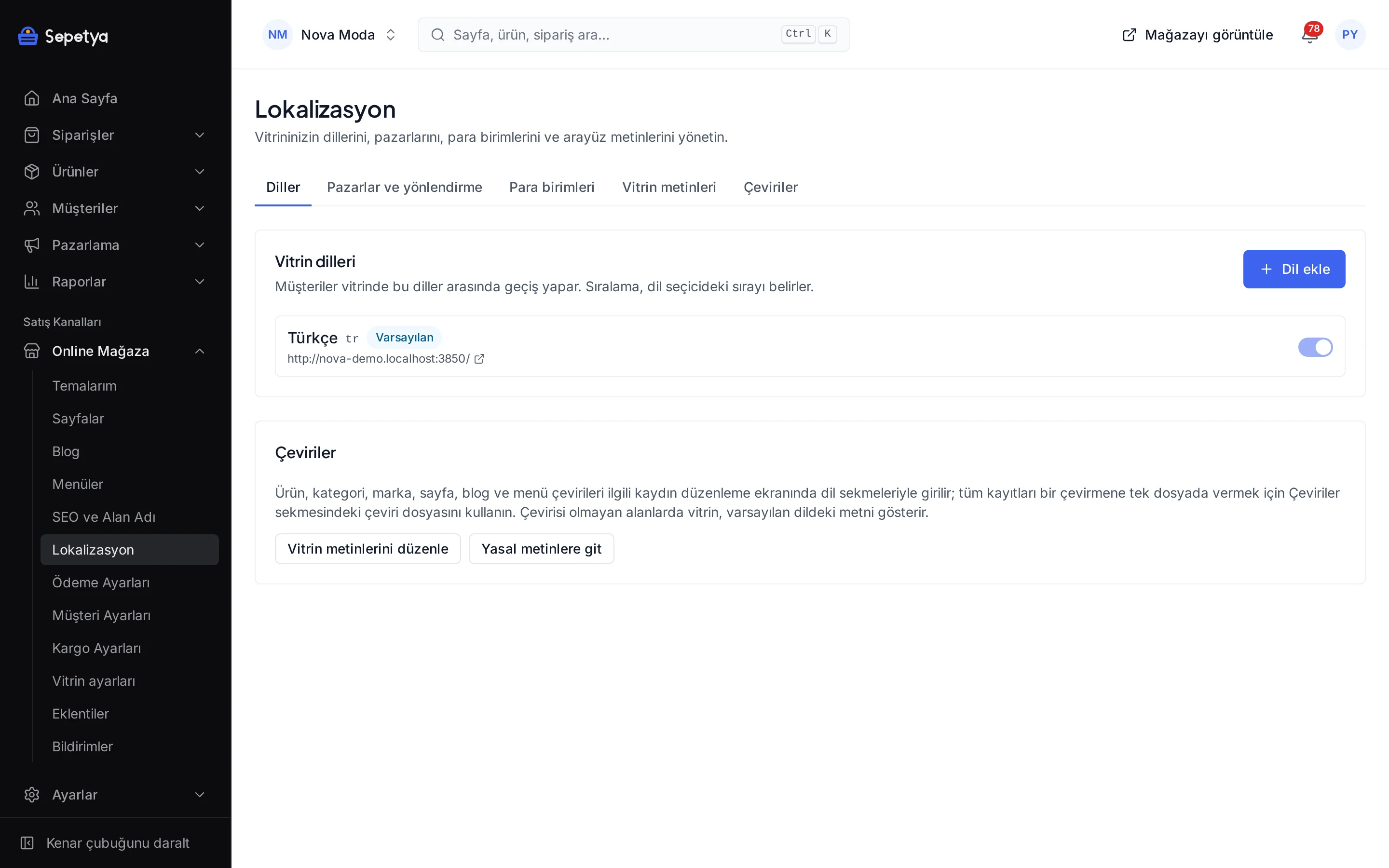
Add languages to your store and set the default language and the order. Content such as products, categories, brands, pages, blog posts, menus, campaign titles and shipping names is translated separately for every language.
Markets
Define a market for each language with a subfolder (such as /en) or a separate domain and assign a default currency and countries to it. Visitors pick their own market with the language, currency and country selectors.
Multiple currencies
Add and activate currencies and take the rate automatically from TCMB or ECB or enter it by hand. Set the rounding rule and the display format per currency.
A price list per currency
Attach your own price list to a currency: in that currency products sell at the prices you entered instead of a converted price.
Translation with CSV
Export the translations of more than twenty record types to CSV with one column per language, hand the file to a translator and upload it again. Every row is validated, other languages are kept and faulty rows are reported.
International payments
Cards from customers abroad can be taken with Stripe, and the currency and the exchange rate at that moment are saved on the order.
Languages and markets
Language, address and currency for every market
A market combines the language, the address structure (subfolder or separate domain), the default currency and the list of countries. Adding an English storefront under /en to a Turkish store is done from one screen. Visitors pick their market with the selector and their choice is remembered; you show or hide the selectors in the theme settings.
E-mails, contracts and the order page go out in the customer’s language. You edit the storefront interface texts (cart, checkout, account …) for each language yourself and move them in bulk with CSV.
- Product, category, brand, page and blog addresses (slugs) are translated for every language
- The language alternates (hreflang) of every page are added to the sitemap
- The language, currency and country selectors are switched on or off in the theme settings
- The number of languages and currencies depends on your plan; multiple languages and currencies are plan features
Translation
Translate in bulk with CSV
You export the translations of more than twenty record types (products, categories, brands, pages, blog posts, menu items, pop-ups, campaigns, shipping rates, stock locations, custom customer fields, order statuses, return reasons, the home page SEO text, the announcement bar, image alt text …) to CSV with one column per language. Hand the file to a translator and upload it again: every row is validated by its own service, an empty cell keeps the current text, other languages are not erased and faulty rows are listed on the operation page and in the error report.
Language columns for products are also in the product CSV and the storefront interface texts move with a separate CSV. You translate theme section texts in the theme editor by switching the content language.
- You get a result e-mail when the operation finishes
- Import permission is checked per record type; product translations need the product permission
- CSV cells are protected against formula injection
- You can also translate one by one with the language tabs of the product form
Currencies
Rates, rounding and display format
Add a currency and have the rate fetched automatically from TCMB or ECB, or use a manual rate if you want to enter your own. Use the rounding rule to keep prices tidy: no rounding, to a whole number, or ending in .99 or .90. Set the symbol position, the decimal and thousand separators and whether zero decimals are hidden per currency. An automatic-rate currency without a rate is not shown on the storefront.
If you like, attach your own price list to a currency: in that currency products sell at the prices you entered instead of a converted price. The currency and the exchange rate at that moment are saved on the order.
- The rate source is TCMB or ECB, and a manual rate can be chosen for any currency
- A default currency can be set per country
- The product page, cart and checkout work with the same currency and price
What is not covered here
- Customs handling: customs processes such as declarations and ETGB are not in the dashboard; you handle them with your carrier and customs broker.
- International carrier integration: you can add foreign countries as shipping zones and define rates, but there is no integration that connects to a carrier’s API.
- Payouts in foreign currency: the currency in which a payment reaches your account depends on the contract you have with your payment provider.
- Automatic country detection: visitors pick the language, currency and country with the selectors; detecting the country from the IP address and redirecting is not available in this version.
How it works in the dashboard
- Step 1: 1
Add a language
Under Online store › Localization add a language to your store and set the default language and the order.
- Step 2: 2
Define the market
Choose a subfolder or a domain for the language, plus the default currency and the countries.
- Step 3: 3
Translate the content
Translate products and pages with the language tabs or with CSV from the Translations screen and edit the storefront interface texts.
- Step 4: 4
Set up the currency
Add the currency and choose the rate source, the rounding and, if needed, a price list for that currency.
Frequently asked questions
Can I publish my store in more than one language?
Yes. You add languages, translate every product, category, page and blog post and edit the storefront interface texts. Multiple languages are a plan feature and the number of languages depends on your plan; details are on the pricing page.
Can I show prices in other currencies?
Yes. You add a currency and take the rate automatically from TCMB or ECB or enter it by hand, and you can attach your own price list to a currency. Multiple currencies are a plan feature and the number of currencies depends on your plan.
How do I take payments from abroad?
International cards and local payment methods can be offered with Stripe; a Stripe account requires a business registered in a country that Stripe supports. The currency and the exchange rate at that moment are saved on the order. The currency in which a payment reaches your account depends on your contract with the provider. See payment methods for details.
What is offered for customs and international shipping?
Customs processes (declarations, ETGB and the like) and international carrier integrations are not in the dashboard; you handle them with your carrier and customs broker. You can add foreign countries as shipping zones and define separate rates; see shipping and delivery.
Does it detect the visitor’s language or country automatically?
Visitors pick the language, currency and country with the selectors in the store and the choice is remembered. Detecting the country from the IP address and redirecting is not available in this version.
How does VAT work when selling in several countries?
Tax classes and rates can be defined per country and province. Whether prices are shown with or without VAT is a single store-wide setting; it cannot be chosen separately for products and shipping. Decide the VAT treatment of export sales together with your accountant.
Open up to a new market
During the trial add a second language and currency, translate a few products and see how the storefront looks.