Build your store
A store design that fits your brand, without writing code
Pick a theme built for your industry. Reorder sections, adjust colours and fonts, check the result in desktop, tablet and mobile previews and publish with one click when you are ready.
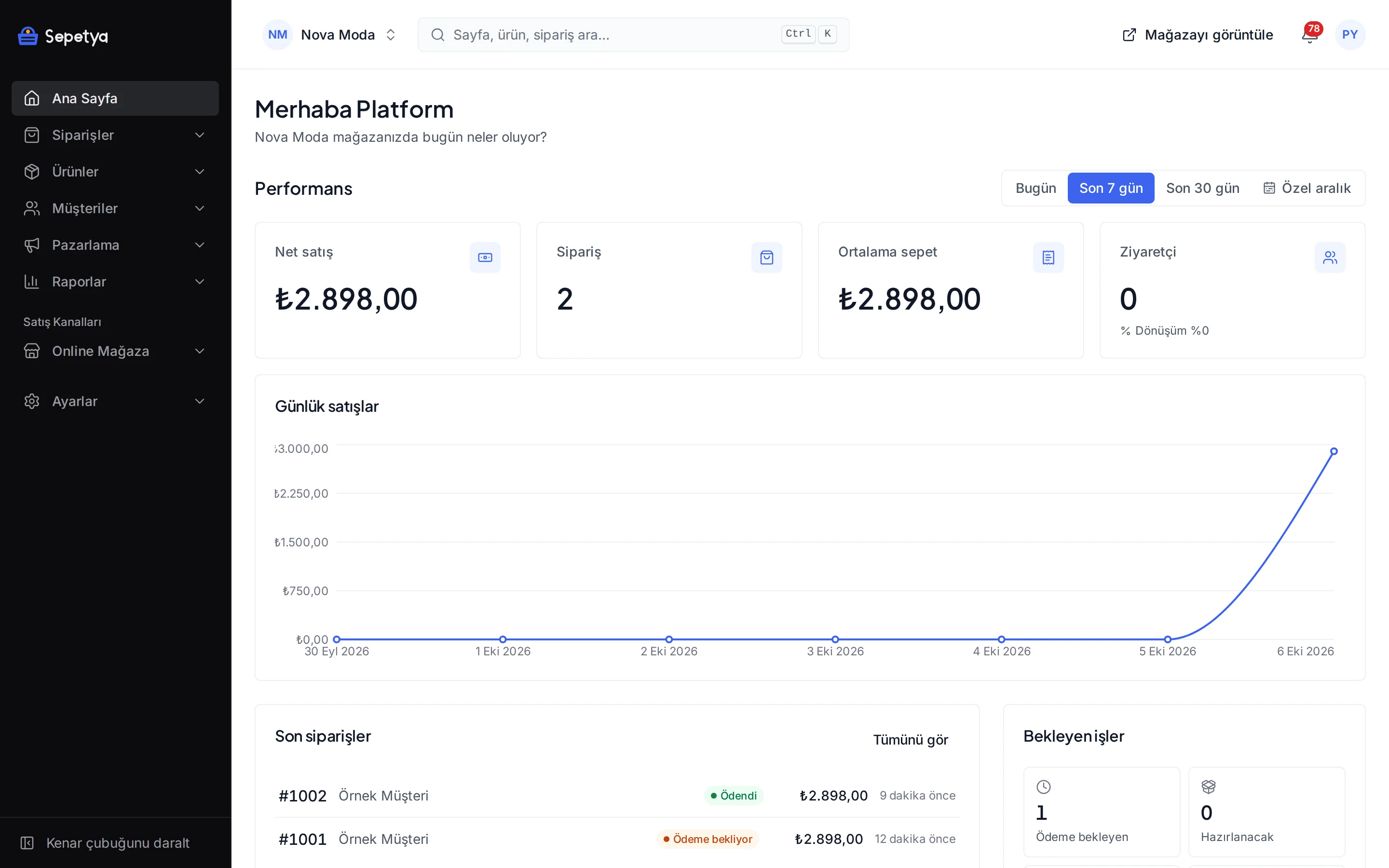
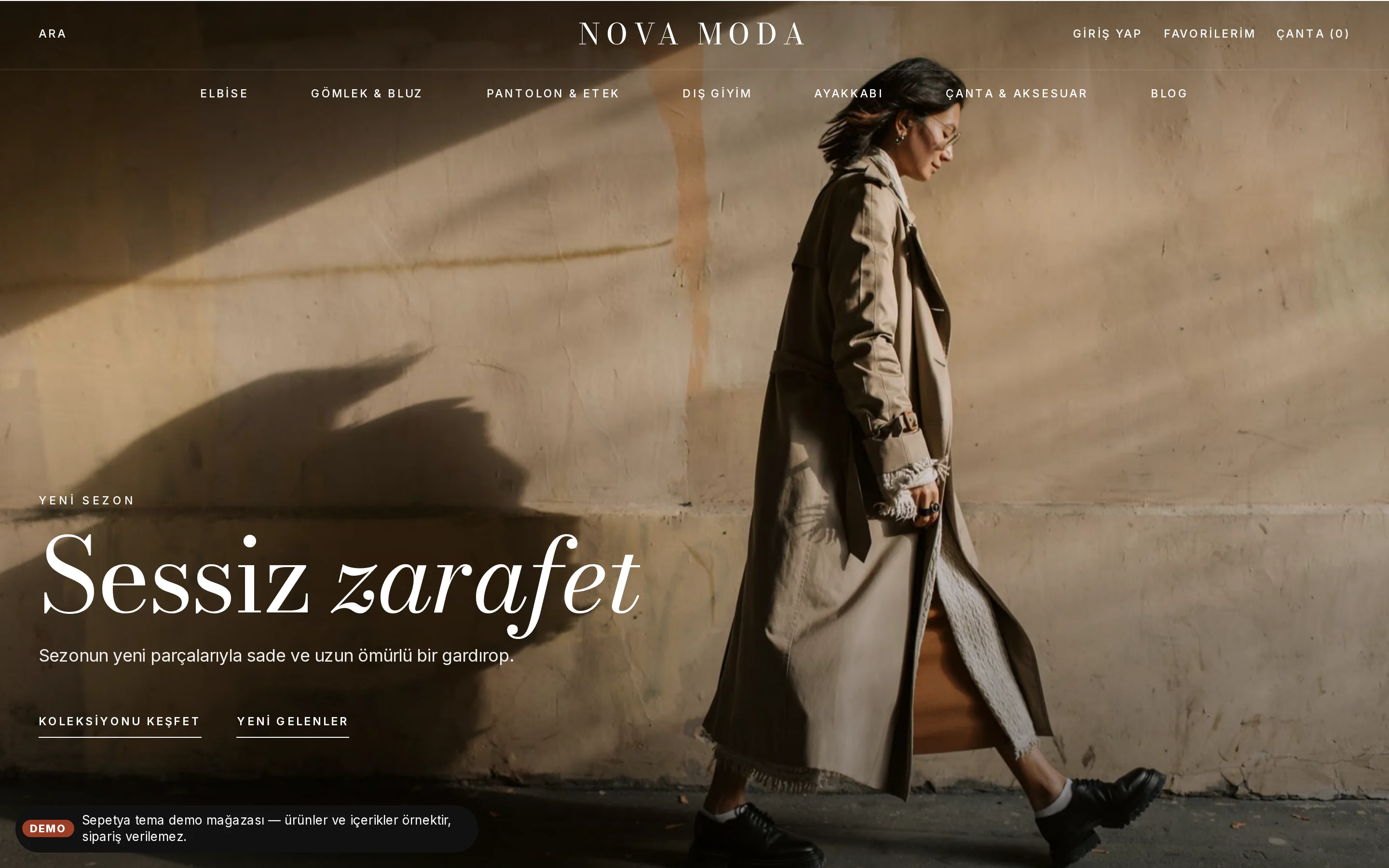
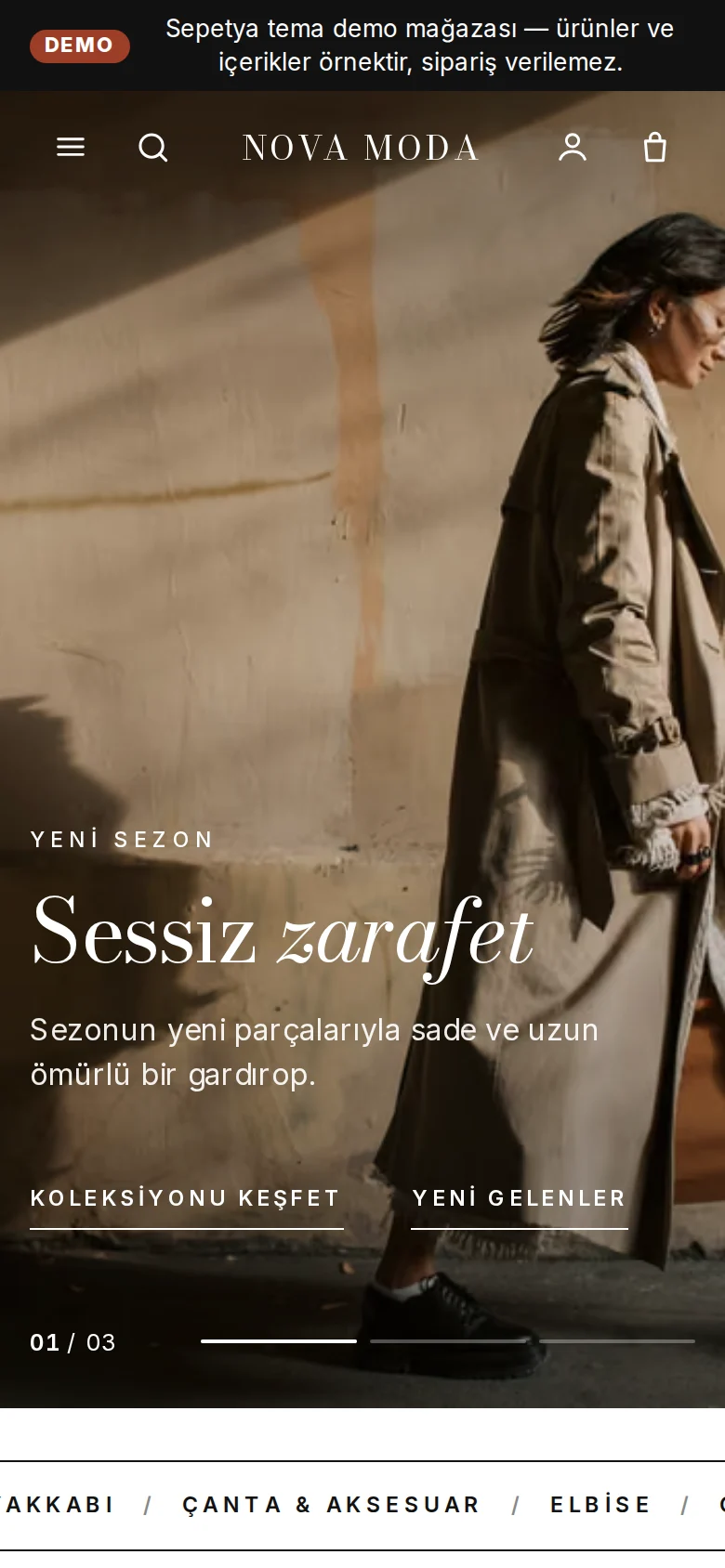
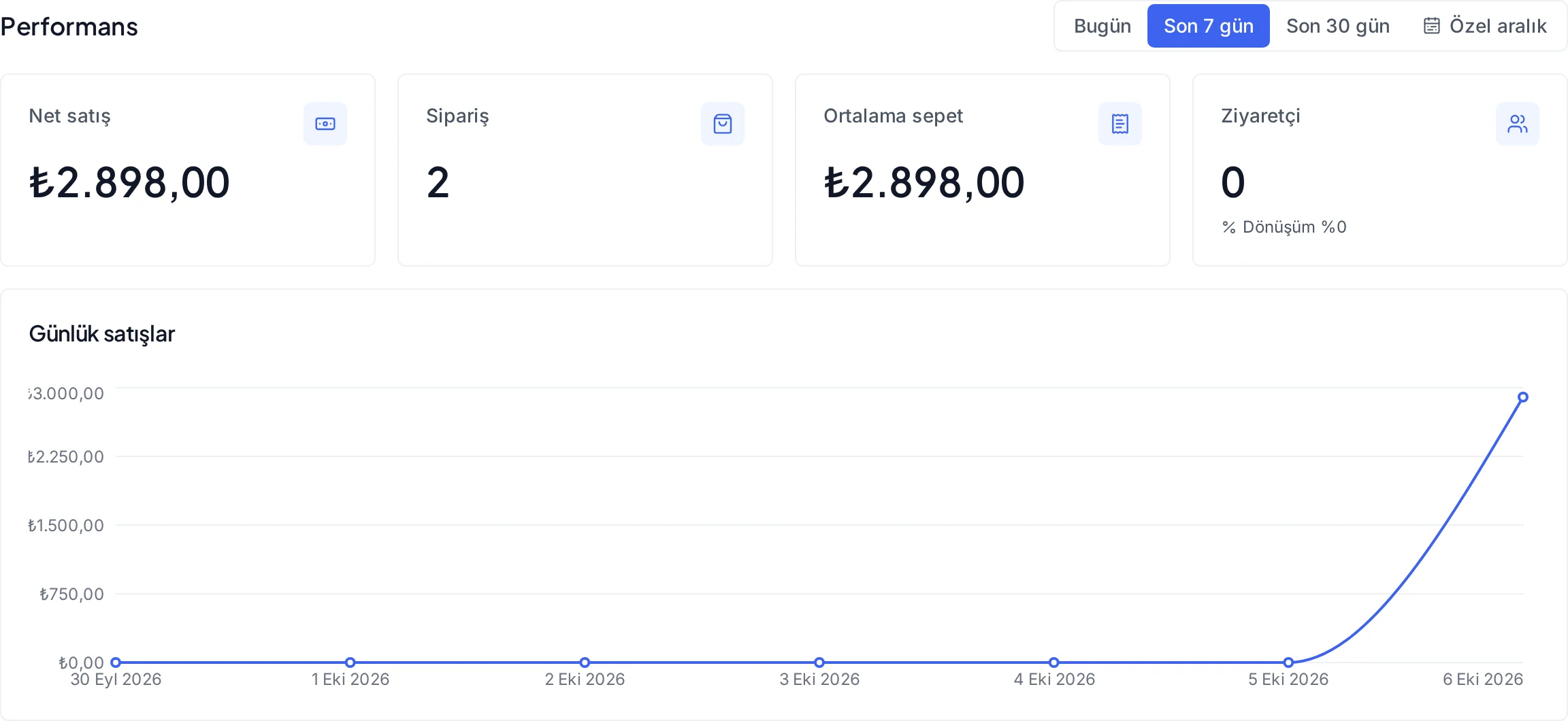
Everything you need for the design
Start ready-made and customise as far as you like.
Structurally different themes
Each theme has its own header, opening area, product card and footer, so they are not recoloured copies of one design. There are separate themes for fashion, general stores, electronics, cosmetics, home, grocery, jewellery and kids.
Colour, font and shape settings
Eight colour settings, twenty fonts, heading weight, button shape, corner radius and page width in one place. Every theme comes with ready-made colour presets.
Build pages from sections
Add, duplicate, hide and drag into order sections such as slideshows, featured products, category grids, image with text, video, FAQ, newsletter and blog posts.
Preview on every device
Switch between desktop, tablet and mobile previews. Click a section in the preview to open its settings.
Content per language
Enter section texts separately for each language of your store and switch the content language in the editor to see each version.
Draft, publish and undo
Changes are saved as a draft automatically. Step back and forward with undo and redo, publish when ready and reset a template or all settings to the defaults if needed.
Themes
Browse the demo store before you decide
You can browse the demo stores of the themes, filled with example content, and see the product page, category list and mobile view before you publish anything. Demo content is marked as “example content” and no orders can be placed in a demo store.
Some themes are free and others are bought with a one-time licence; the current list and prices are on the theme pages. A purchase creates an invoice and the theme joins your library once the payment is confirmed.
- Keep several themes in your library; edit and preview them without publishing
- When you publish a new theme the previous one stays in the library, so you can go back at any time
- A new theme version updates while your settings and sections are kept
- Duplicate a theme, export it as a JSON file or import it into the draft of another theme
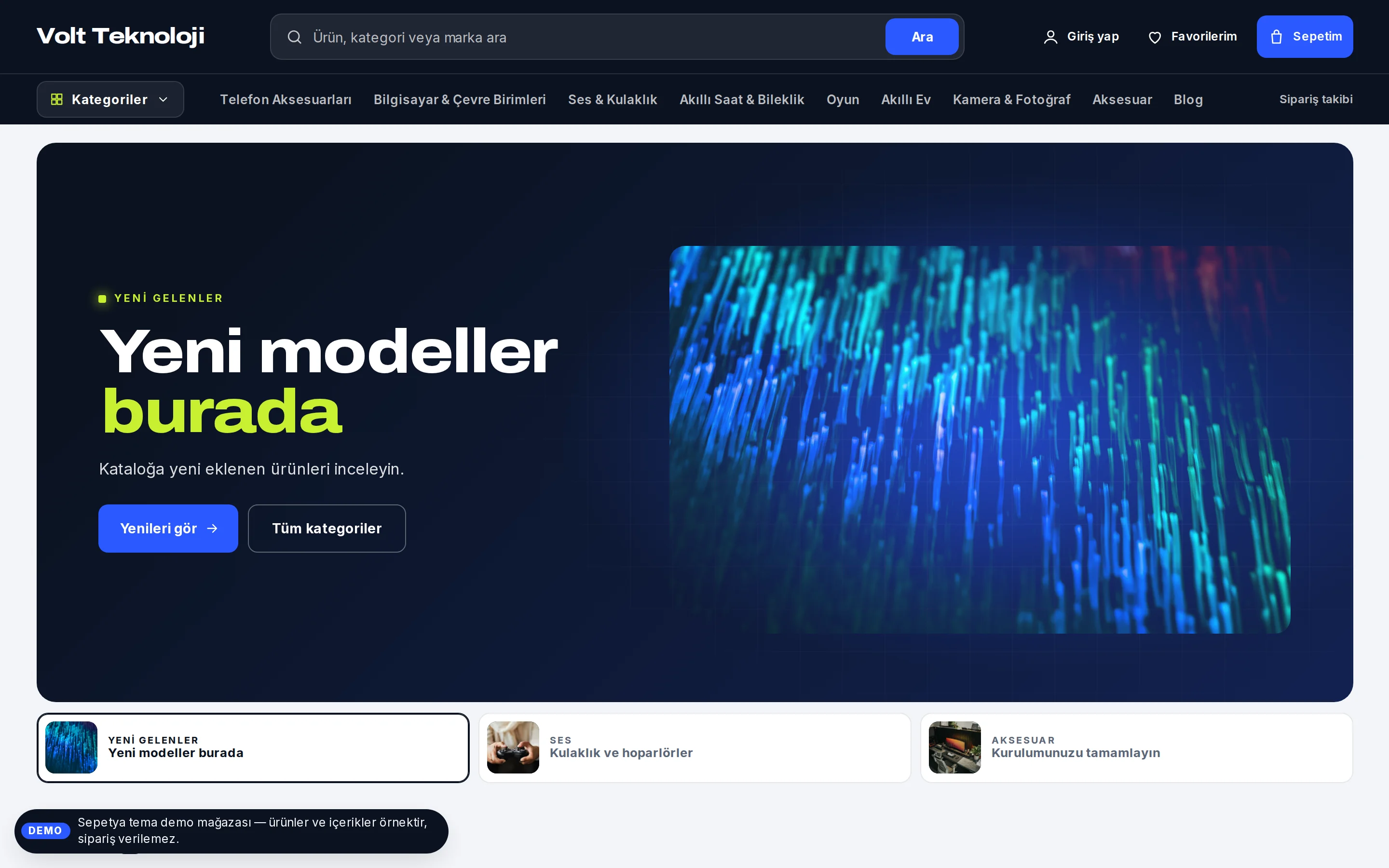
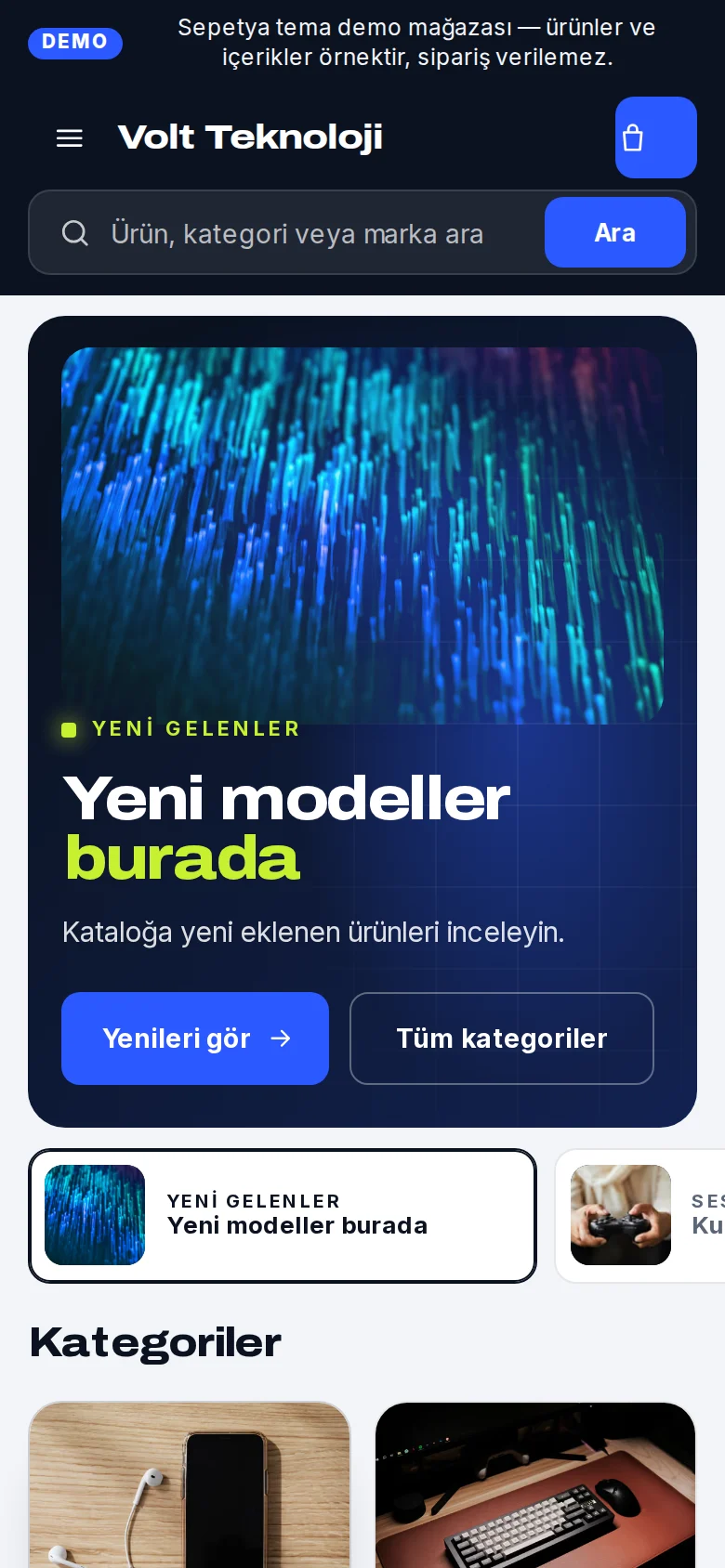
Theme editor
Edit what you see
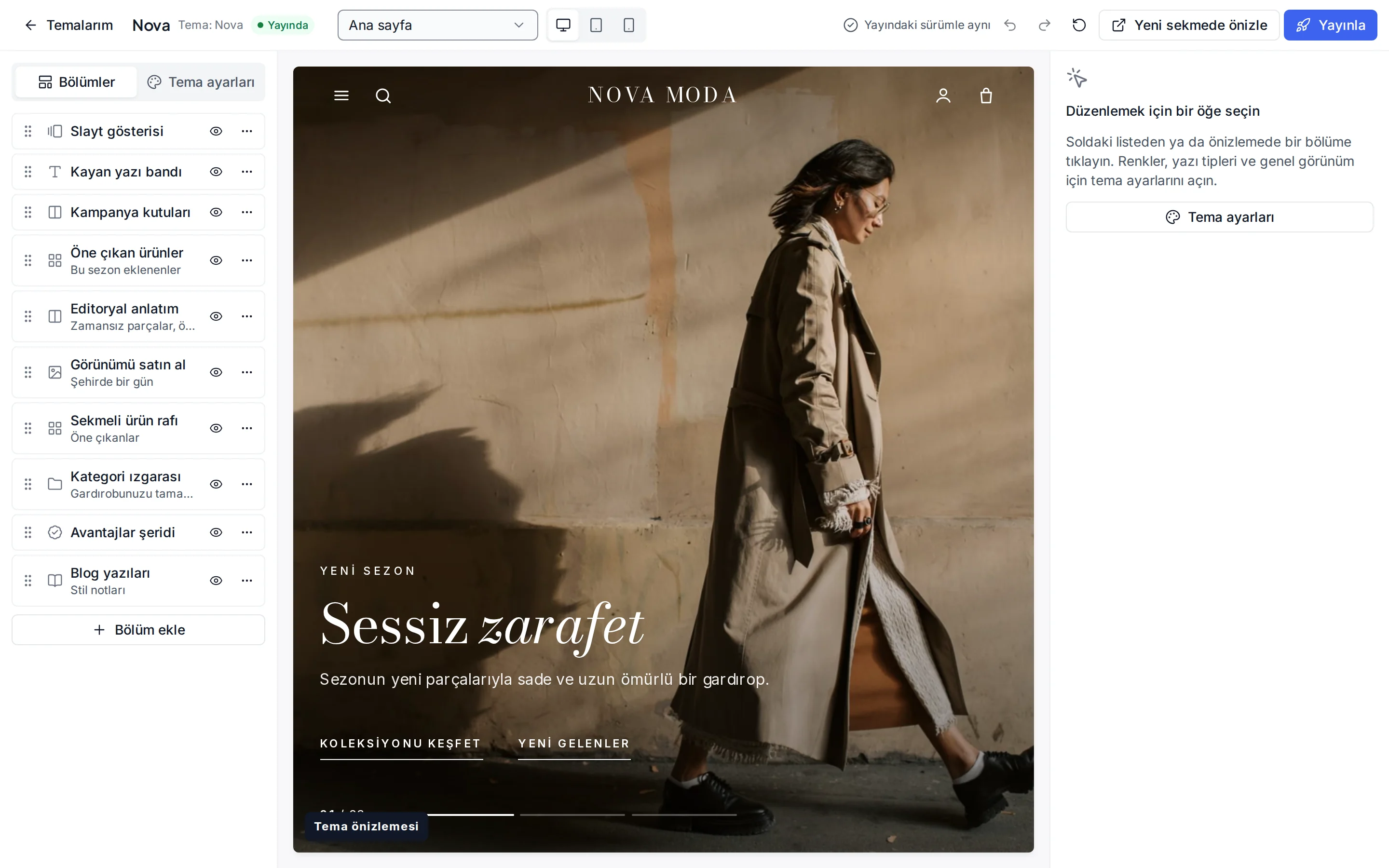
The list on the left shows the sections of the page, the live preview in the middle shows your store as it is right now and the panel on the right shows the settings of the selected section. Click a section in the preview and change its heading, image, link and colours.
You edit 22 page templates in the same editor, including the home, product, category, cart, checkout and account pages.
- Search in the add-section gallery; duplicate, hide and drag sections into order
- Undo and redo; changes are saved to the draft automatically
- A conflict warning when the theme was changed in another session or by another staff member
- Reset a template, the theme settings or everything to the defaults in one step
Pages, menus and blog
Manage your store’s content yourself
Build your about, contact and campaign pages from sections. Pages carry a separate title, address and meta fields for each language, can be scheduled and keep their revisions. Header and footer menus go three levels deep and can point to a product, category, brand, page, blog post or an external link.
The blog comes with a block editor, categories, tags and RSS. Legal pages (returns, delivery, privacy, KVKK notice, seller details) come as editable template texts; have a lawyer review them before you publish.
- Custom pages: title, address and meta fields per language, scheduled publishing and revision history
- Menus: three levels, open in a new tab, links to products, categories, brands, pages and blog posts
- Blog: block editor, categories and tags, scheduled publishing, RSS
- Custom code: add scripts tied to a cookie consent category
How it works in the dashboard
- Step 1: 1
Add the theme to your library
Under Online store › My themes, look at the demo stores in the gallery and add the one you like to your library.
- Step 2: 2
Edit it in the theme editor
Choose the page template and adjust sections, colours, fonts and texts. Changes are saved to the draft automatically.
- Step 3: 3
Prepare menus and pages
Create the header and footer menus and pages such as about and contact under Menus and Pages.
- Step 4: 4
Preview and publish
Check the mobile preview too, then press Publish. Visitors see the new design right away and the previous theme stays in your library.
Frequently asked questions
Can I design a store without coding?
Yes. You pick a theme and edit sections and settings in the theme editor; no code is required. Advanced users can add custom scripts under Storefront settings; each script is tied to a cookie consent category and loads according to it.
Can I change the code of a theme?
No. Themes are ready-made structures that come with the platform and store owners do not edit their code. You shape the look with theme settings, sections, menus and pages, and extra behaviour with custom scripts.
Are paid themes included in the plan price?
No. Some themes are free; paid themes are bought with a one-time licence on top of the plan fee. A purchase creates an invoice for your store and the theme joins your library once the payment is confirmed. Current themes and prices are on the themes page.
How does my store look on a phone, do I need extra settings?
Themes are mobile friendly. Switch to the mobile preview in the editor to check every section; for sections such as slideshows and banners you can also choose a separate image for mobile.
Will a new theme version break my design?
No. The dashboard offers the new version as an “Update” option; it brings the new sections and fixes of the theme while your settings and sections are kept.
How does the design work if I publish my store in several languages?
The layout and sections are the same in every language and you enter the texts of each section per language. Switch the content language in the editor to check each version. See languages and currencies for details.
Try your store’s design yourself
During the trial add themes to your library, use the theme editor as you like and publish when you are ready.