Sell and manage
Products and inventory, from variants to stock counts
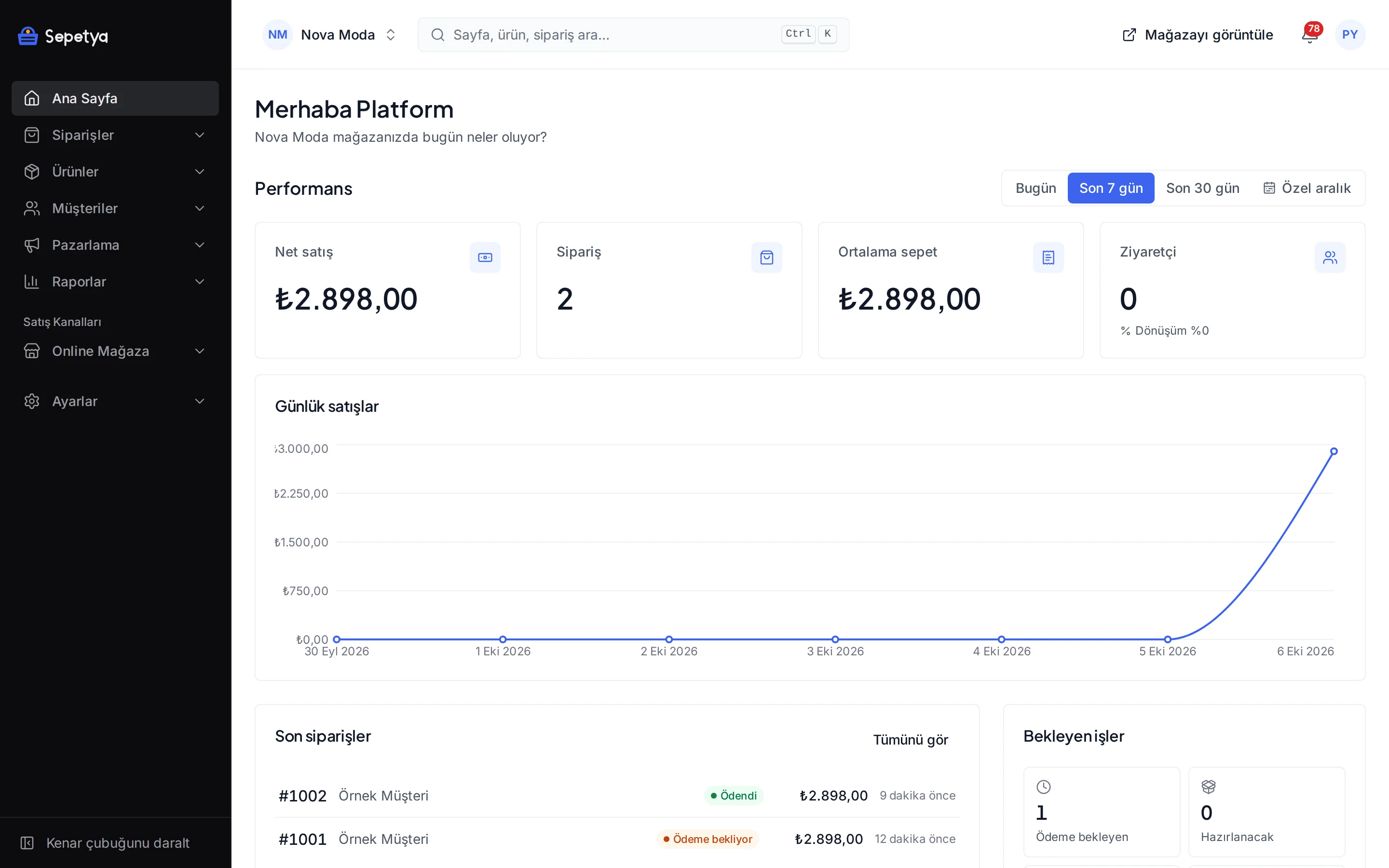
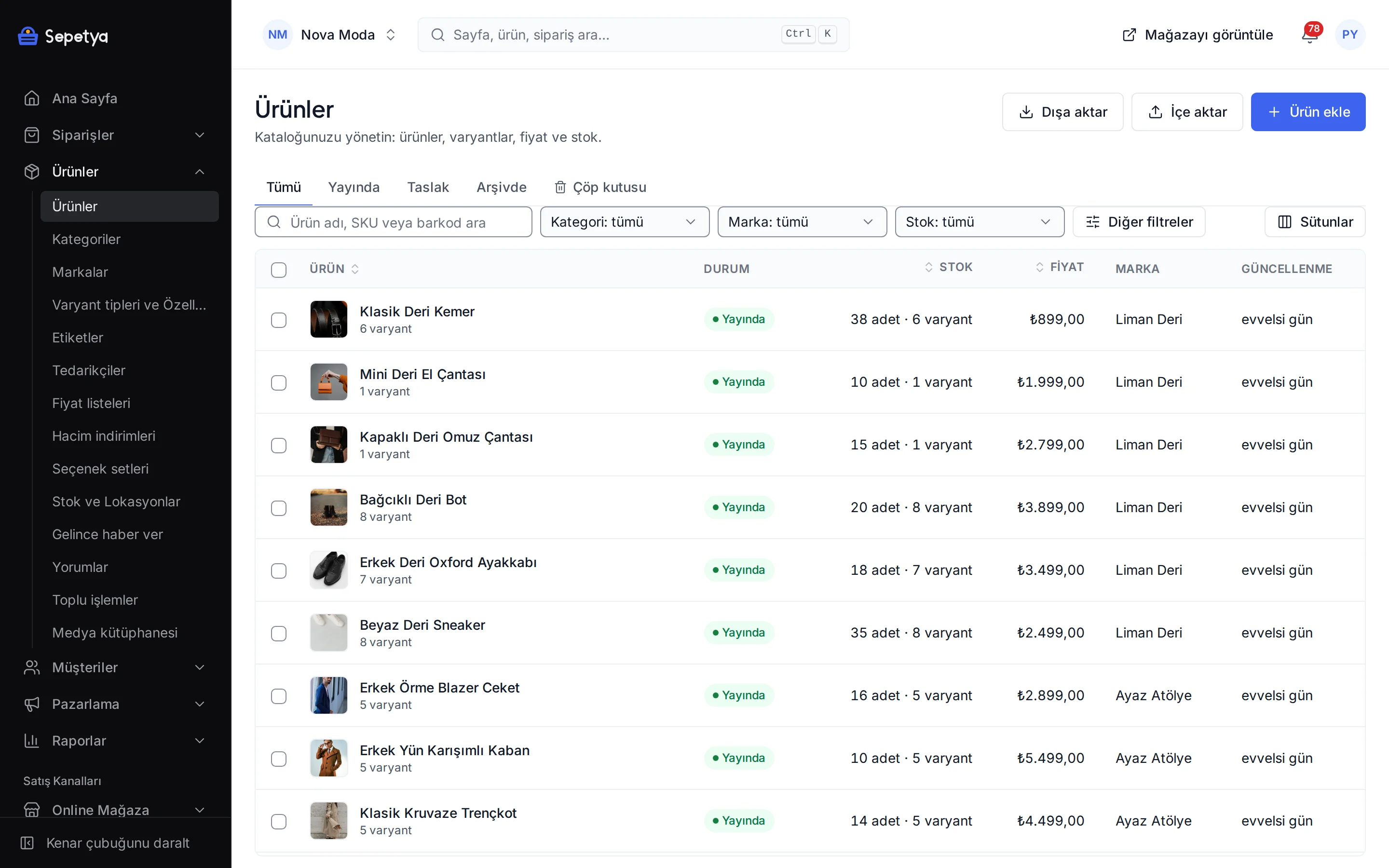
Manage physical, digital, service and bundle products, variants such as colour and size, personalisation fields and stock across several locations from one dashboard.
What you need to build your catalogue
Four product types
Physical, digital, service and bundle products. A digital file is delivered through a signed link once the payment is received; for bundles you set the quantity range and discount of the items inside.
Variants
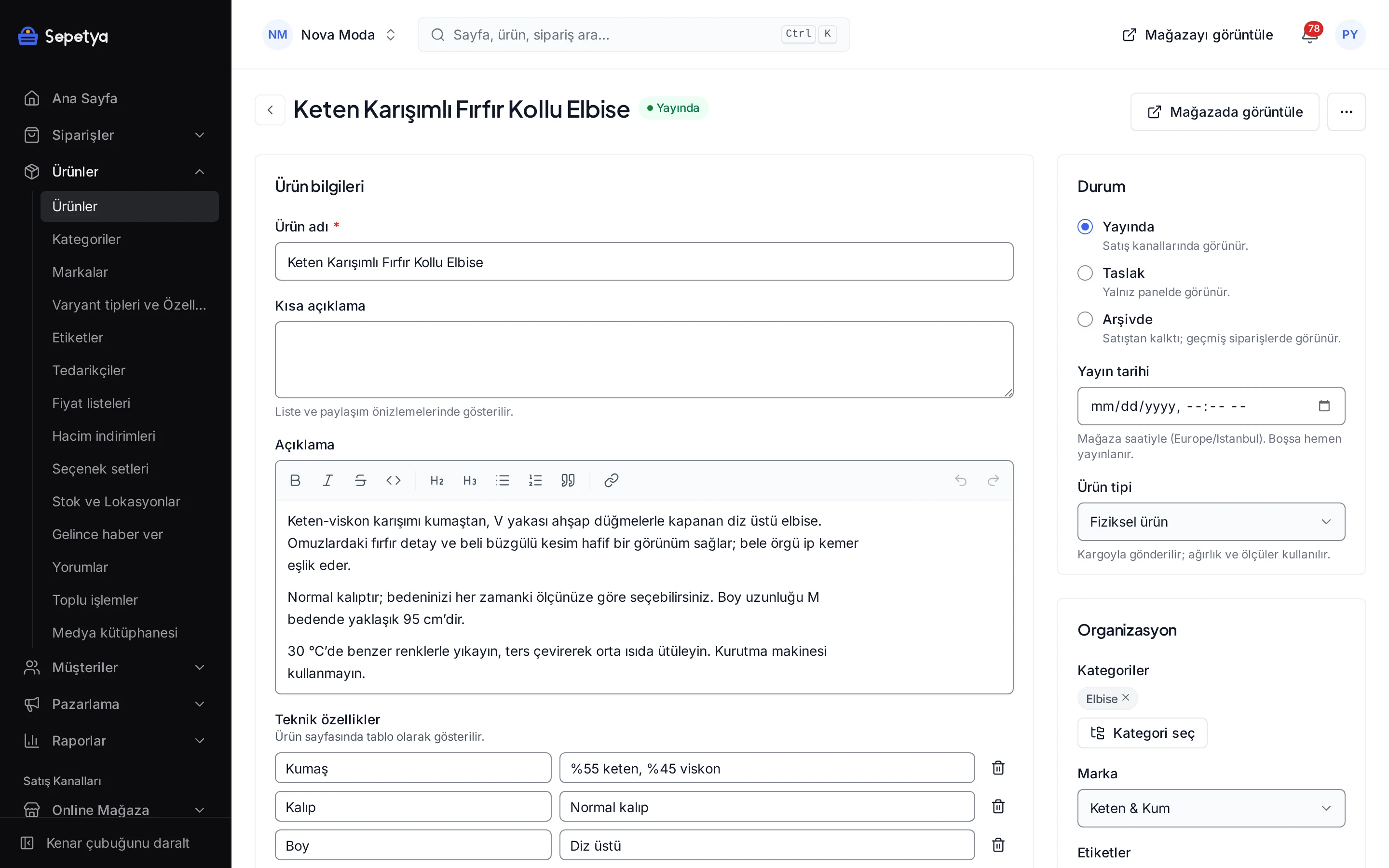
Create variants from options such as colour, size and material. Every variant has its own SKU, barcode, customs tariff code (GTİP), price, weight, images and stock.
Personalisation
Add fields such as engraved text, a gift note, a file upload, a date or a colour choice with option sets; define conditional fields and extra fees.
Category tree and rule-based categories
Build a category tree of any depth. Define categories that collect products automatically by rules such as price range, brand, tag or attribute.
Multi-location stock
Create stock locations, track the quantity of each variant in every location, transfer between locations, run stock counts and get e-mail alerts when stock runs out.
CSV and bulk actions
Import or export products, variants, stock, price lists and translations as CSV. Update price, status, categories, tags and brand on many products at once. This feature depends on your plan.
Variants and personalisation
Every variant with its own stock, images and price
Define options such as colour, size and material and the dashboard builds the variant combinations. Every variant has its own SKU, barcode (with additional barcodes), GTİP code, weight, price, cost, images and stock per location. Colour options appear as swatches on the storefront.
When a customer needs to add text, upload a file or pick a date or colour, use option sets: make fields required, link them to each other and add an extra fee.
- Digital files are stored encrypted and sent through a signed, time-limited link once the payment is received
- For bundles, set the items inside, the quantity range and the discount
- Option sets: text, multi-line text, file, image, date, colour, checkbox and choice list, with conditional fields and extra fees
- Product attributes: 12 types including table, colour, image and product link; shown as a specification table on the storefront
Price and sales rules
Set price, unit and quantity per product
Show a unit price per kilogram, litre or metre; define minimum, maximum and step quantities, or allow only fixed quantity options. Rules can differ between the online store and orders entered in the dashboard.
Apply customer-group or currency-specific prices with price lists and tiered quantity prices with volume discounts. The price on the product page is the same as the price in the cart and at checkout.
- Unit price: gram, kilogram, litre, metre and custom units
- Quantity rules: minimum, maximum, step and fixed quantity options
- Price lists: entered by hand or calculated from an exchange rate; assigned to a customer group, a currency or a sales channel
- Volume discounts: a tiered unit price table appears on the product page
Stock
Track stock from one place wherever it is
Create stock locations such as a warehouse, a shop or a workshop and track the quantity of each variant in every location. Orders are deducted from stock in the location order set by the sales channel. Transfer between locations, run stock counts and record the differences.
Get e-mail alerts per location when stock runs out. Customers leave “notify me when back in stock” requests and are notified automatically when the product is back. You can also allow selling a product that is out of stock.
- The preparation time per location appears on the product page as an estimated preparation time
- Back-in-stock requests: the customer gets an e-mail, and requests can be tied to a pickup point
- E-mail alerts to the store owner for low and sold-out stock
- The storefront shows a “last N items” notice only from real stock; there are no fake scarcity messages
- Stock value report: cost and sales value by variant, product, category, brand and location
How it works in the dashboard
- Step 1: 1
Add the product
Open a new product under Products: enter the name, description, images and video, category, brand and tags.
- Step 2: 2
Set variants and price
Define the options and enter the SKU, barcode, price and images per variant. Attach option sets if you need them.
- Step 3: 3
Enter the stock
Enter stock quantities for your locations. Transfer and count stock from the Stock and Locations screen.
- Step 4: 4
Publish
Set the product live and choose which sales channel shows it. Use bulk actions to update price, categories and tags on many products at once.
Frequently asked questions
Can I sell variant, digital and bundle products?
Yes. There are four product types: physical, digital, service and bundle. Every variant combination has its own SKU, barcode, price, images and stock. A digital file is stored encrypted and sent to the customer through a signed link once the payment is received; the link is valid for seven days and the store owner can resend it from the dashboard.
Can I upload products in bulk?
Yes. Products, variants, stock, price lists and translations are imported or exported as CSV files. The dashboard gives you a template, previews the upload and reports faulty rows; in the product file brands, categories and suppliers are created from their names. CSV import and bulk actions depend on your plan; the pricing page shows which plans include them.
Can I track stock in more than one warehouse?
Yes. You create stock locations and track the stock of every variant per location. Orders are deducted in the location order of the sales channel; transfers between locations and stock counts are done in the dashboard. Click-and-collect orders are taken from the stock of the chosen pickup point.
How do out-of-stock products appear on the storefront?
Showing out-of-stock products, moving them to the end of the list or hiding them is a store setting. You can also keep selling when stock runs out, and customers can ask to be notified when the product is back and get an e-mail when it is.
Can I control product reviews?
Yes. You choose whether reviews wait for your approval or are published automatically, and you can require an account or a purchase to review. Reviews contain a star rating, title, text and up to six images. You can reply to a review publicly or only to the customer.
How are product images and videos processed?
Hidden information such as location (EXIF) is removed from uploaded images and WebP and AVIF versions are generated for each screen size. You can upload an MP4 or WebM video or add a YouTube or Vimeo link; the video plays in the product gallery and is added to the product’s structured data.
Start building your catalogue
During the trial add your products and try the variant and stock structure with your own catalogue.