Sell and manage
Issue e-Fatura and e-Arşiv invoices for your orders from the dashboard
Connect your own integrator account and, if you like, let the invoice be issued automatically when payment arrives or the order ships. An e-Fatura goes to registered buyers and an e-Arşiv invoice to everyone else; the invoice number and PDF are attached to the order.
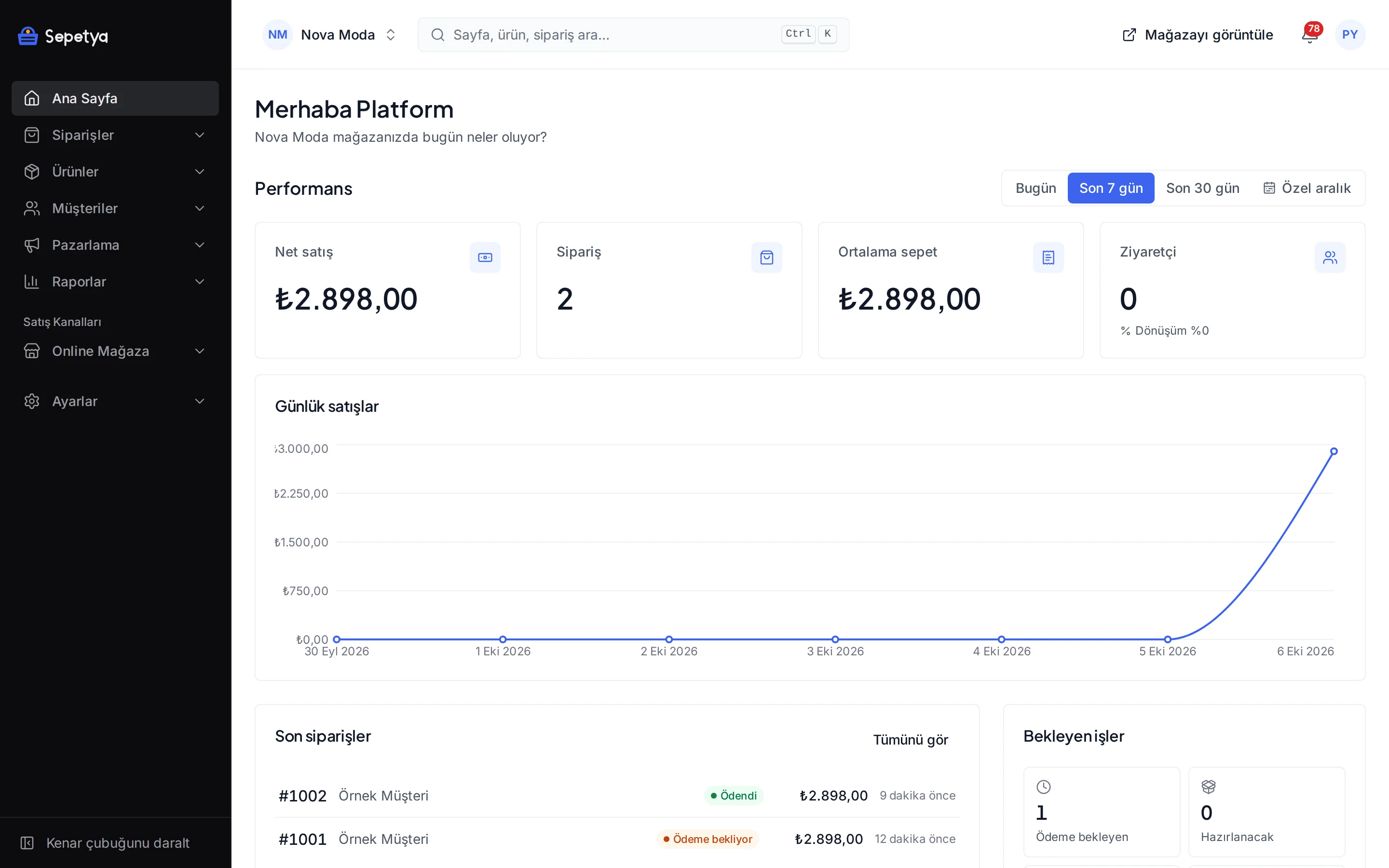
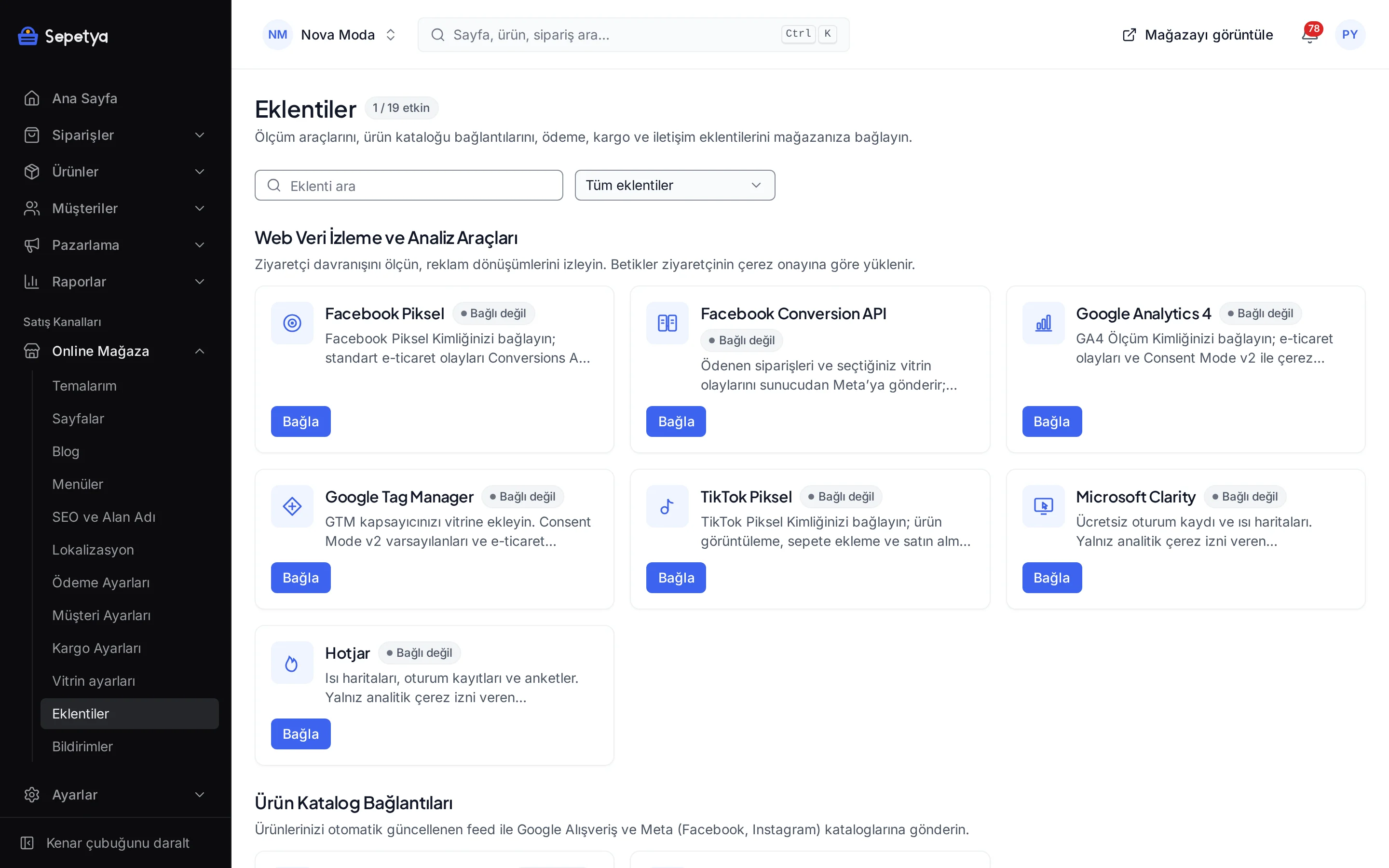
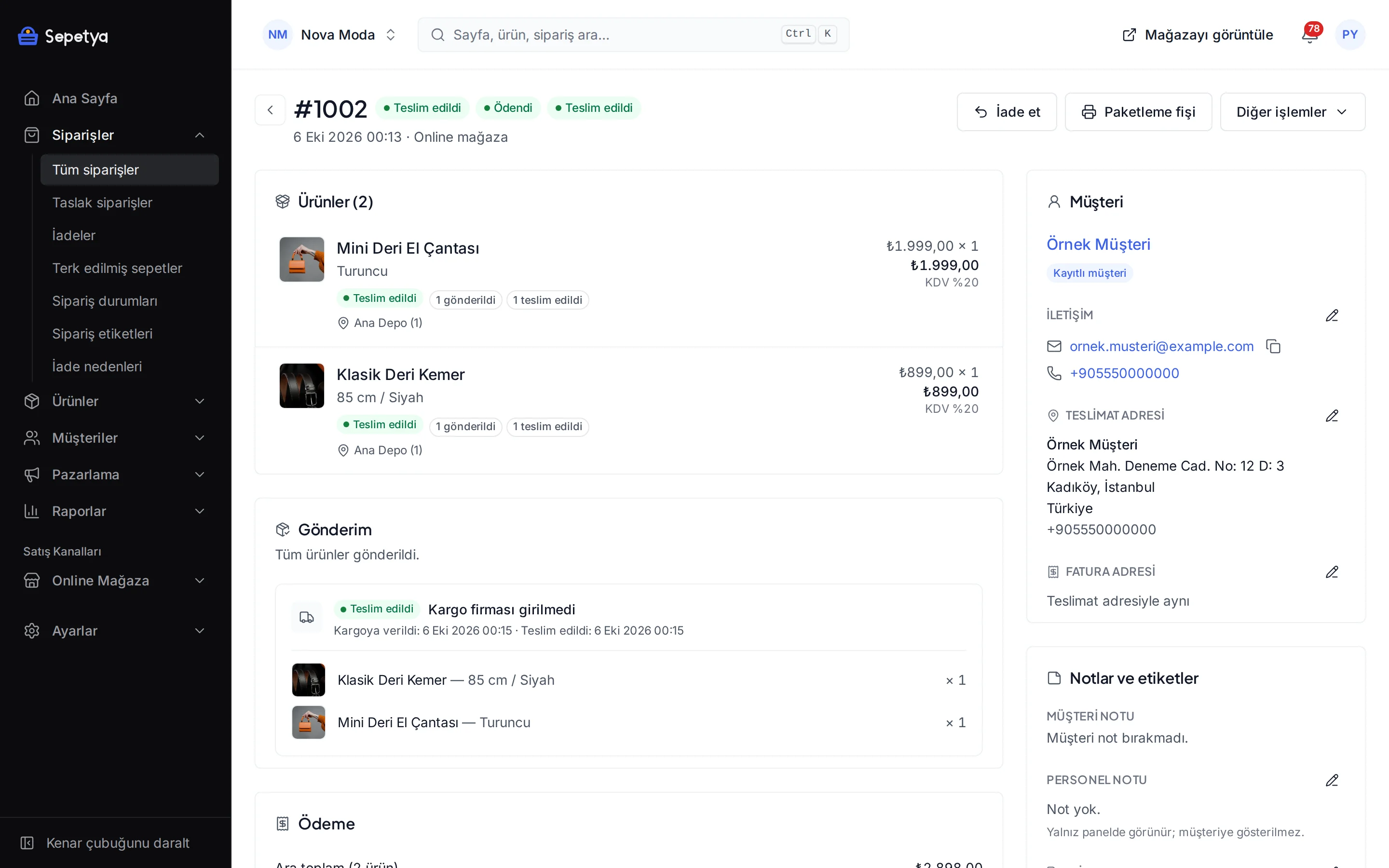
Manage the invoice from inside the order
Your own integrator account
The invoice is issued in your name from your integrator account; Sepetya does not issue invoices in its own name. Your API key is stored encrypted and you choose the test or live environment. The built-in integrator is Nilvera.
Document type by buyer
The buyer’s e-Fatura registration is looked up with their tax or identity number: an e-Fatura for registered buyers and an e-Arşiv invoice for the rest. You can also choose the document type yourself on the order page.
Automatic issuing
Issue the invoice automatically when payment is received or the order ships, or choose “manual” and issue it from the order.
Invoice number and PDF
The invoice number and PDF are attached to the order; the customer downloads the invoice from their account and, if you like, gets a download link by e-mail.
Retries without duplicate invoices
The status of a sent document is polled regularly; after a network or integrator outage it is retried with the same document id. An order has one valid invoice, and a failed one is sent again with “Resend”.
Cancellation
You cancel an e-Arşiv invoice from the dashboard and the cancellation goes through the integrator. An e-Fatura is cancelled through GİB’s cancellation and objection channels and the dashboard only marks the record. An issued invoice is cancelled, never deleted.
e-Fatura or e-Arşiv?
The buyer decides the document type
If the buyer is in GİB’s list of e-Fatura registrants an e-Fatura is issued and delivered to the buyer’s integrator mailbox; otherwise an e-Arşiv invoice is issued and reaches the customer by e-mail or a download link. The dashboard makes this decision by asking the integrator: with the tax number collected at checkout for a company buyer and with the identity number for an individual. An individual who gives no identity number gets an e-Arşiv invoice, with the placeholder identity number used in e-Arşiv practice.
For internet sales the e-Arşiv invoice carries the details GİB asks for: web address, payment method and date, payment intermediary, carrier and shipping date. Which document or identity detail is mandatory above which amount depends on tax law and current GİB rules; ask your accountant.
- At checkout you can make the national ID number field required, optional or hidden and switch the company invoice (tax number) field on or off
- The buyer’s mailbox (alias) for an e-Fatura is fetched from the integrator
- You can attach an invoice issued in another program as a file (PDF, XML or image, up to 10 MB) or a portal link
Customer side
The customer downloads the invoice themselves
When the invoice is issued the customer gets an e-mail with a download link, depending on your setting; the link is valid for 30 days. The customer also downloads the invoice from the order page in their account, and a customer without an account uses the order link they were sent. The invoice PDF is kept in encrypted, private storage.
With Orders › Export › Invoices you can export the invoices of a period as CSV together with download links and pass the file to your accountant.
- A “send the invoice to the customer by e-mail” setting; you can also send an invoice later with “Send to customer”
- The text of the e-mail to the customer is edited with the e-mail templates
The e-invoicing integrator
Invoices are issued with your own integrator account, which you connect from the Apps screen.

Limits worth knowing
- Zero-VAT lines: lines with 0% VAT that need an exemption reason are not issued automatically; issue those invoices in your integrator’s panel and attach them to the order as a file or a link.
- Cancelling an e-Fatura: an e-Fatura is cancelled through GİB’s own cancellation and objection channels (or the buyer rejects it); the dashboard only records it.
- Foreign currency: for orders placed in a currency other than TRY the invoice is issued in the order currency together with the TRY rate recorded when the order was placed.
- Integrator: the built-in integrator is Nilvera. The dashboard is built on an integrator-independent contract (buyer lookup, issue, status, PDF, cancel); another integrator can be developed as a separate module with the module SDK.
How it works in the dashboard
- Step 1: 1
Open an integrator account
You need an account registered for e-Fatura / e-Arşiv with Nilvera (or the integrator you use); generate the API key in the integrator’s portal.
- Step 2: 2
Connect the app
Open the app under Online store › Apps › Accounting and e-invoicing and enter the API key, the e-Arşiv and e-Fatura series and the e-Fatura scenario. Verify the account with “Test connection” and try the test environment first.
- Step 3: 3
Set up e-invoicing
Under Settings › e-Fatura choose whether invoices are issued automatically when payment arrives or the order ships, or leave it manual, and decide whether the customer gets an e-mail.
- Step 4: 4
Check it on the order
On the invoices card of the order page see the document’s status, number and PDF and retry or cancel if needed.
Frequently asked questions
Can I issue e-Fatura and e-Arşiv invoices?
Yes, through your own integrator account. The built-in integrator is Nilvera and you enter your API key in the app. The invoice is issued in your name by the integrator; Sepetya does not issue invoices in its own name.
Which document type is issued?
The integrator looks up the buyer’s e-Fatura registration with their tax or identity number: an e-Fatura for registered buyers and an e-Arşiv invoice for the rest. An individual who gives no identity number gets an e-Arşiv invoice. You can also choose the document type by hand in the “Issue e-Fatura” window on the order page. Document type and identity requirements depend on tax law; ask your accountant.
Is the invoice issued automatically?
It is optional: under Settings › e-Fatura you choose whether the invoice is issued automatically when payment arrives or the order ships, or you pick “manual” and issue it from the order. An order has one valid invoice at a time; after a network or integrator outage it is retried with the same document id so no second invoice appears.
Can I work with other integrators?
The built-in integrator is Nilvera. The dashboard is built on an integrator-independent contract and another integrator can be developed as a separate module with the module SDK. If you work with an integrator that is not available, issue the invoice in your own system and attach the PDF to the order.
What happens with products at 0% VAT?
Lines at 0% VAT that need an exemption reason are not issued automatically. You issue these invoices in your integrator’s panel and attach them to the order as a PDF or a link.
How does the customer receive the invoice?
When the invoice is issued the customer can get an e-mail with a download link and also downloads it from the order page in their account. You can also attach an invoice issued in another program as a PDF and send it to the customer.
Issue your invoices together with the order
Connect your integrator account, issue a test invoice in the test environment and switch on automatic issuing when you are ready.