e-Invoice / e-Archive
Nilvera integration
Issue e-Invoices and e-Archive invoices for your orders with your own Nilvera account; the number and PDF are attached to the order.
- Works with your own Nilvera account
- e-Invoice or e-Archive by buyer
- Automatic or manual issuing
What it does
e-Invoice and e-Archive
If the buyer is a registered e-Invoice user, an e-Invoice is issued; otherwise an e-Archive invoice. The buyer’s status is looked up by tax number.
Automatic issuing
Have the invoice issued automatically when the order is paid or shipped, or issue it by hand from the order page. The customer can receive the invoice link by e-mail.
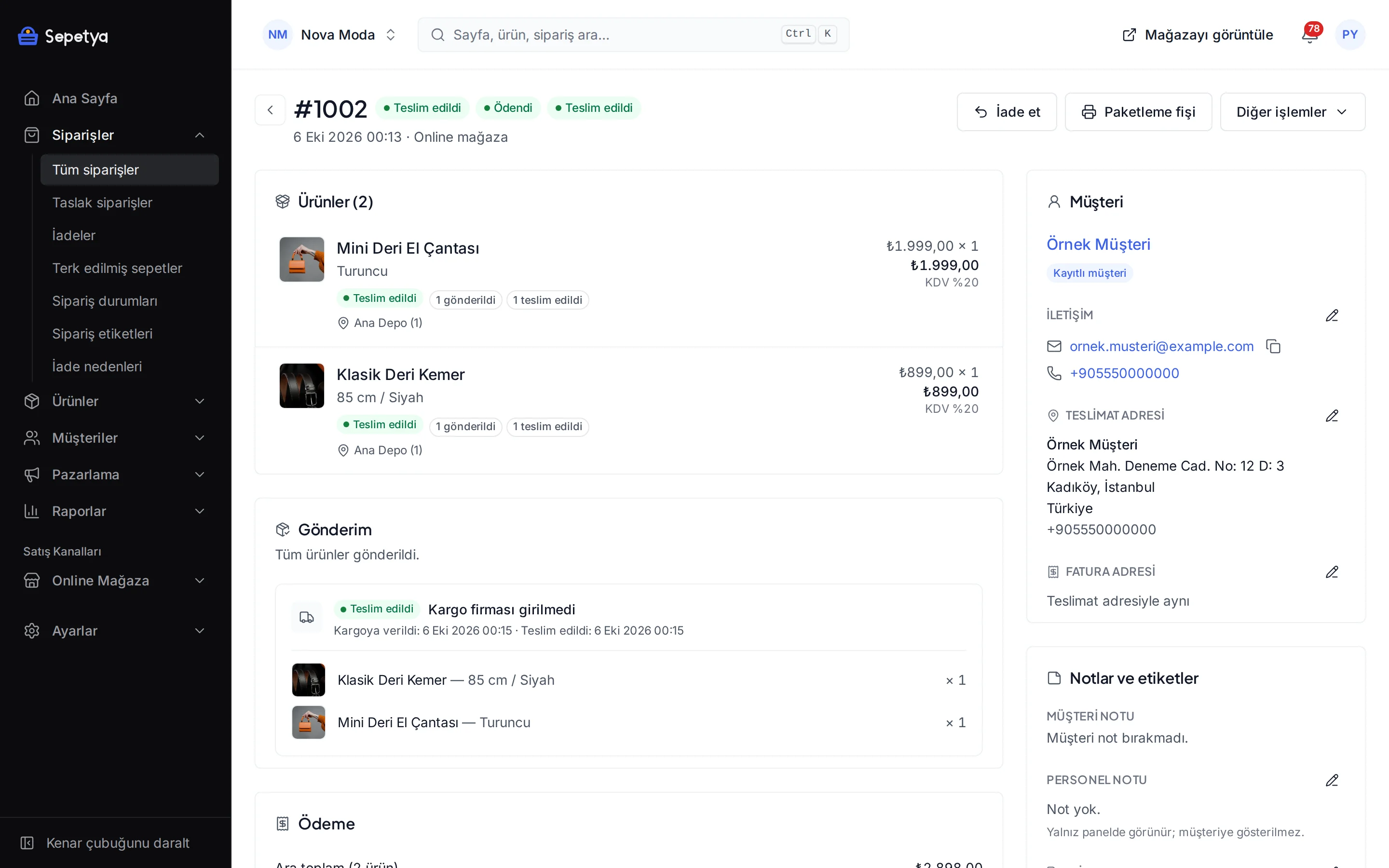
Number and PDF on the order
The invoice number and PDF are attached to the order; customers can download the invoice from the order page in their account.
Status tracking
The status of submitted documents is polled regularly; accepted, rejected or failed documents show up on the order timeline.
e-Archive cancellation
You can cancel e-Archive invoices from the dashboard. Cancelling an e-Invoice goes through the tax authority’s own channels; the dashboard only records it.
No duplicate invoice on retry
Every document is sent with a unique id (ETTN), so a send that is retried after a connection error never creates a second invoice.
How an invoice is sent
Once the order documents are ready the invoice is built from the details in the store dashboard and sent through the integrator. Its status is shown on the order and a failure can be retried.
You enter the integrator details yourself and can change them at any time; the interface is built independently of any one integrator.
How to connect it in the dashboard
You enter your keys and ids in the store dashboard; secret values are stored encrypted and masked in the panel.
- Step 1: 1
Prepare your Nilvera account
Your Nilvera account and e-Invoice / e-Archive service must be active; documents are issued with your own company details. Try with your test account before going live.
- Step 2: 2
Generate an API key
In the Nilvera portal, generate an API key under API Definitions > New Key. Test and live environments have separate keys.
- Step 3: 3
Note your invoice series
Note the 3-character e-Archive series (for example EAR) and the e-Invoice series (for example EFT) defined in Nilvera.
- Step 4: 4
Connect the app
On the Apps page, in the Accounting and e-Invoice group, click Connect next to Nilvera. Enter the API key (stored encrypted), the environment (Test or Live) and the two invoice series; optionally choose the e-Invoice scenario (basic or commercial invoice) and a design template id.
- Step 5: 5
Test the connection
After Save and activate, the “Test connection” action on the app page shows the company the API key belongs to.
- Step 6: 6
Choose automatic issuing
On Settings › e-Invoice, choose when the invoice is issued: manually, when payment is received or when the order is shipped. Remember to switch the environment to Live before going live.
Good to know
- You need a Nilvera account. Document credit and fees depend on your contract with Nilvera; errors such as insufficient credit are shown to you on the order screen.
- Documents issued in the test environment are not sent to the tax authority. Switch the environment to Live when you go live.
- Documents are issued in your name. The platform never issues invoices in its own name; every document comes out of your own Nilvera account.
- e-Invoices cannot be cancelled from the dashboard. Only e-Archive invoices can be cancelled there; cancelling an e-Invoice goes through the tax authority’s own channels.
- This is not tax advice. The e-Invoice and e-Archive obligation, the document content and the cancellation rules depend on the legislation and your business; check your settings with your accountant.
- An integrator-independent interface. Nilvera is the built-in integrator app; the e-invoice interface is designed so that other integrators can be added with the module SDK.
The name Nilvera belongs to its owner; this page does not imply a partnership or endorsement.
Nilvera: frequently asked questions
Is an e-Invoice or an e-Archive invoice issued for each order?
If the buyer is a registered e-Invoice user (looked up by tax number), an e-Invoice is issued; otherwise an e-Archive invoice. The decision is made automatically from the buyer details on the order.
Can I have invoices issued automatically?
Yes. On Settings › e-Invoice choose “When payment is received” or “When the order is shipped”. The default is “Manual”: you issue the invoice with the button on the order page.
Is an invoice issued in the test environment valid?
No. Documents issued in the test environment are not sent to the tax authority. For live invoices, set the environment to Live in the app settings and enter your live API key.
Where does the customer download the invoice?
From the order page in their account and, if customer notification is turned on in the e-Invoice settings, from the link in the e-mail announcing the invoice.
Connect it from the dashboard in a few steps
Set up your store and try the integration yourself during the trial; your keys only ever work for your own store.