Marketing and measurement
Ad measurement and product feeds in one place
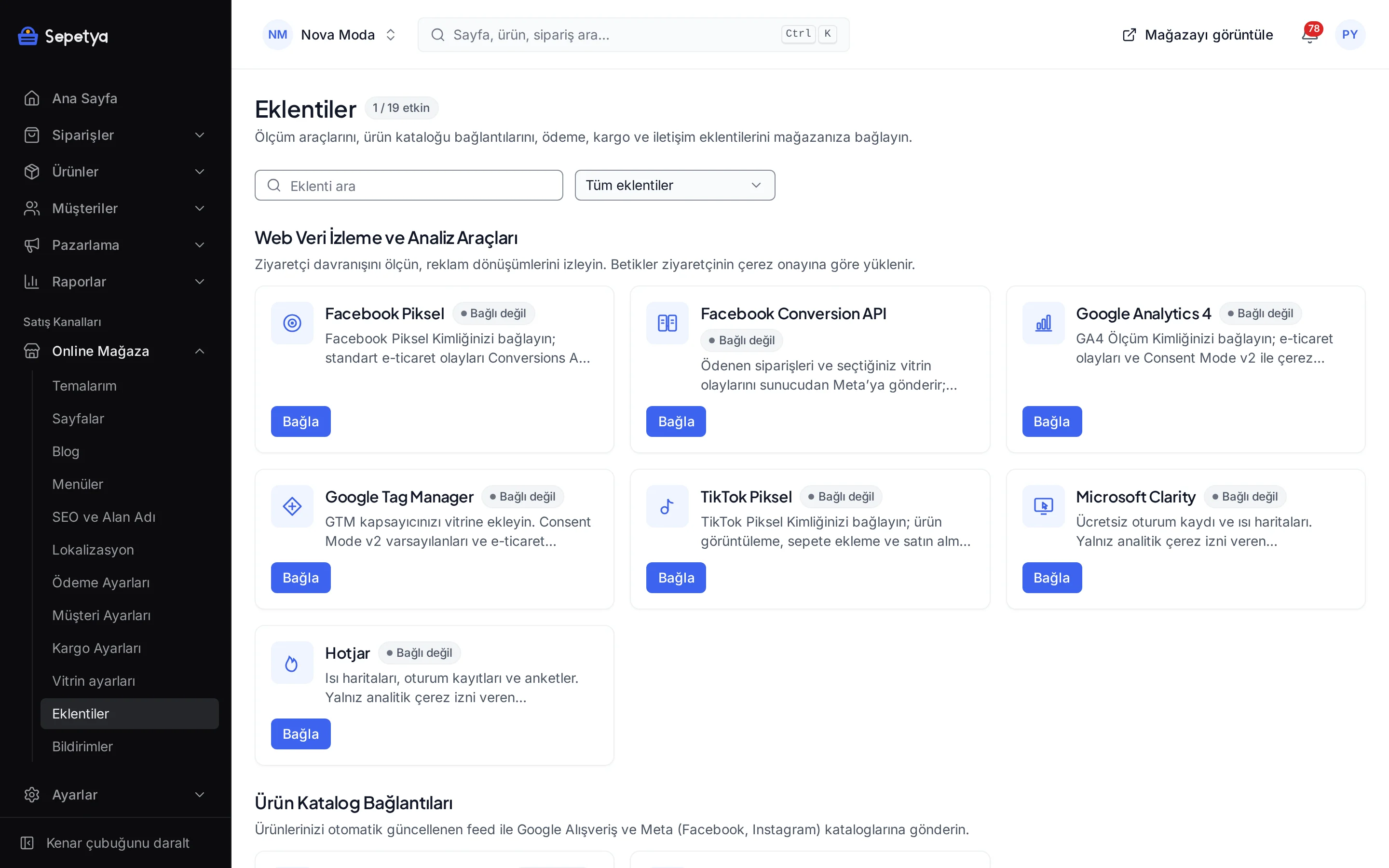
Connect the Facebook, TikTok, GA4 and GTM pixels, the Meta Conversions API and the Google and Meta product catalogs from the Apps screen. Scripts follow the visitor’s cookie choice and the feeds are generated from your catalog automatically.
Measurement tools and feeds, ready to connect
GA4 and Google Tag Manager
Enter your GA4 measurement ID or your GTM container ID. Page and product views, add to cart, checkout steps, purchase, search, sign-up and login events go in the GA4 e-commerce format, and with GTM the same events are written to the dataLayer.
Meta Pixel
Enter your Pixel ID; product view, add to cart, checkout start, payment info, purchase, search and sign-up are sent as standard events. The script loads after the visitor allows marketing cookies.
Meta Conversions API
Paid orders are sent to Meta from the server, unaffected by browser blockers. It uses the same event id as the Pixel, so Meta counts an event once. You choose which other storefront events are sent from the server.
TikTok Pixel
Enter your Pixel ID; product view, add to cart, checkout start, payment info, purchase, search and sign-up events are sent. The script runs with marketing cookie consent and withdraws consent when the visitor does.
Heatmaps and session recordings
Enter your Microsoft Clarity project ID or your Hotjar site ID. Heatmaps and session recordings run only for visitors who allow analytics cookies.
Google and Meta product feeds
Your products are generated as an RSS 2.0 feed for Google Merchant Center and as a CSV or XML feed for Meta Commerce Manager. You copy the URL from the dashboard and set it up as a scheduled fetch; the feed refreshes at least every 15 minutes.
Following cookie choices
Scripts run according to the visitor’s cookie choice
Analytics scripts (GA4, Clarity, Hotjar) load after the visitor allows analytics cookies and advertising scripts (the Meta and TikTok pixels) after they allow marketing cookies. For the GTM container you choose the consent category: “Marketing” (the default) if the container fires ad tags, “Analytics” for analytics-only containers. When a visitor changes their choice, Google Consent Mode, Meta, TikTok and Clarity pick up the change right away.
The cookie banner and the record of visitor decisions are covered on the compliance page. You decide which tool to connect and how to reflect it in your privacy notice; ask your adviser for the legal assessment.
- Google Consent Mode v2: until consent is given every storage type starts as “denied”
- The Meta and TikTok pixels do not load until marketing consent is given
- Clarity and Hotjar run only for visitors who allow analytics cookies
Meta Pixel and Conversions API
To Meta from the browser and the server, without double counting
The Meta Pixel works from the browser and the Conversions API from the server; an event arriving by both routes carries the same event id, so Meta counts it once. For purchases the event id is the order number and, if the visitor allowed marketing cookies when ordering, the event is sent from the server the moment the order is paid; orders paid later, such as bank transfers, are sent when payment arrives.
You choose in the module settings which of product view, add to cart, checkout start, payment info, search and sign-up are also sent from the server; these go only for visitors who allow marketing cookies. Customer details such as e-mail, phone, first name and city are sent hashed with SHA-256; the IP address, browser information and Meta cookies (_fbp, _fbc) are sent as they are, as Meta requires, when they were recorded.
- Try it with a test event code under Events Manager › Test events; the “Send test event” action verifies the connection
- The access token is stored encrypted and fields holding credentials are hidden in the app logs
- The Pixel and the Conversions API report products by variant id, the same id the feed uses
Google Merchant Center
A ready product feed for Google Shopping
When you activate the app the feed URL appears on the module page; you set it up in Merchant Center under Products › Feeds › Add product source › Scheduled fetch. The feed is generated from your catalog automatically and refreshes at least every 15 minutes.
Every active, priced product variant is a row of its own in the feed, and the variants of a multi-variant product are tied together by a product group id. The title is capped at 150 and the description at 5,000 characters; up to 10 additional images, brand, barcode, weight and product categories are added. For products with a compare-at price the compare-at price becomes the regular price and the current price the sale price; automatic percentage campaigns flagged “show on product page” come through as the sale price, with their validity window when they end.
- Barcode type (GTIN or MPN), out-of-stock behaviour, condition and default brand are chosen in the dashboard
- A default Google product category and a “store category => Google category” mapping
- An option to leave products without an image out of the feed
Meta Commerce Manager
A product catalog for Facebook and Instagram
The catalog is served as a CSV or XML feed; you set the URL up in Meta Commerce Manager under Catalog › Data sources › Data feed › Scheduled feed. The product data follows the same rules as the Google feed: one row per variant, additional images, brand, barcode, category and campaign prices.
If you like, changes reach the catalog through the Catalog Batch API without waiting for the feed to be downloaded: product, price, stock and campaign changes go to Meta within minutes, and products that can no longer be listed are removed from the catalog. It needs the catalog ID and a system user access token, and the token is stored encrypted. The sync status card on the module page shows the last sync time, pending changes and the problems Meta reported; “Sync now” sends every active product again.
- Send out-of-stock products as “out of stock” or leave them out of the catalog
- The “Test connection” action reads the catalog’s name and product count
Measurement and feed apps
Each is installed with “Connect” on the Apps screen and does nothing in your store until you save its settings and activate it.


Good to know
- Other ad pixels: there are no ready apps for the Google Ads conversion tag, Pinterest or Snapchat. If you load non-Google tags with your GTM container, the domains they connect to may not be listed in the storefront’s content security policy and their requests may be blocked; we recommend the ready Meta and TikTok apps.
- Purchase event: the Meta Conversions API sends the purchase event from the server when the order is paid, if the visitor allowed marketing cookies when placing it; other storefront events also go only with marketing cookie consent. Reflecting this transfer in your privacy notice and cookie policy is the store owner’s responsibility; confirm it with your legal adviser.
- GA4 purchases from the server: optional, it needs a Measurement Protocol API secret, works only for orders of visitors who allowed analytics cookies when ordering and sends no customer name, e-mail or phone; only the order number, amounts and products go.
- Feed scope: by default feeds are generated in your store’s default language and base currency; if you pick another active language and currency on the app page, the feed is generated in that language (untranslated products in the default language) with the prices the storefront shows in that currency. Only the active, priced variants of active products enter a feed; there is no per-product exclusion or filtering by sales channel. Coupons and campaigns with cart conditions are not reflected in feed prices.
- Order flow: orders are not taken directly on Google or Meta; the visitor is sent to your product page and completes the purchase in your storefront.
How it works in the dashboard
- Step 1: 1
Find the apps
Open the “Web data tracking and analytics” and “Product catalog connections” groups under Online store › Apps.
- Step 2: 2
Press “Connect”
The app is installed and its settings form opens: enter the pixel, measurement or container ID. It does nothing in your store until you save and activate it.
- Step 3: 3
Review the cookie banner
Because scripts load according to the visitor’s cookie choice, check the banner’s categories and texts in the dashboard and pick the consent category for GTM.
- Step 4: 4
Verify
Use “Test connection” for GA4, “Send test event” with a test event code for Meta, and for the feeds paste the URL you copied into Merchant Center and Commerce Manager. The Logs tab on the app page shows its run records.
Frequently asked questions
Which measurement and feed tools can I connect?
For measurement the Meta Pixel, the Meta Conversions API, Google Analytics 4, Google Tag Manager, the TikTok Pixel, Microsoft Clarity and Hotjar are ready; for products there are Google Merchant Center and Meta Commerce Manager. Each is installed with “Connect” on the Apps screen and does nothing in your store until you save its settings and activate it.
Do you track visitors who have not given cookie consent?
Analytics scripts do not load before analytics consent and the Meta and TikTok pixels not before marketing consent; for GTM you choose the consent category. The same consents apply on the server side: the Meta Conversions API sends storefront events and the purchase event only with marketing consent (for the purchase, the consent recorded when the order was placed); if the GA4 server-side purchase option is on, the purchase goes only with analytics consent and only the order number, amounts and products are sent. Which tool is used on which legal basis is for the store owner to assess.
Don’t the Pixel and the Conversions API count the same event twice?
No: an event sent by both routes carries the same event id and Meta merges them into one. For purchases the id is the order number. By the same logic the GA4 server-side purchase option does not send the browser purchase event, so a sale is counted once, when it is paid.
How often is the feed updated and which products enter it?
The feed is generated from the current catalog when its URL is requested; Google and Meta fetch the URL on a schedule and the feed refreshes at least every 15 minutes. The active, priced variants of active products enter the feed, each variant as a row of its own. With instant push on in the Meta catalog, product, price, stock and campaign changes reach the catalog within minutes.
How do discounted prices show up in the feed?
For products with a compare-at price the compare-at price becomes the regular price and the current price the sale price. Automatic percentage campaigns flagged “show on product page” also go as the sale price, with the validity window when the campaign has an end date. Coupons and campaigns with cart conditions are not shown on the product page, so they do not enter the feed.
What should I do for Google Ads or other ad pixels?
There are no ready apps for these pixels. You can load tags with your Google Tag Manager container, but the storefront’s content security policy has built-in permissions only for Google’s tag domains, so the network requests of non-Google and advertising tags may be blocked. We recommend the ready Meta and TikTok apps.
Manage measurement and feeds from the same dashboard
Connect the measurement tools from the Apps screen, verify them with test events and give the feed URLs to Google and Meta.