Analytics · Tag management
Google Tag Manager integration
Add your GTM container to the storefront, with Consent Mode v2 defaults and e-commerce dataLayer events.
- Loaded according to cookie consent
- GA4-format dataLayer events
- Just the container ID
What it does
Container on every storefront page
The GTM code and its noscript frame are added to every storefront page; you only enter the container ID (GTM-…).
E-commerce dataLayer events
The storefront writes events such as page and product views, add to cart, checkout start and purchase to the dataLayer in GA4 e-commerce format; GTM triggers can use them.
Consent Mode v2
All consent types are denied by default; they are updated as the visitor chooses, and a consent_update event is pushed to the dataLayer.
Choice of consent category
Choose “Marketing” (the default) if the container fires ad tags, or “Analytics” for analytics-only containers; GTM loads only for visitors who allowed that category.
How events are sent
Events in the storefront first pass through the cookie consent: if the visitor has not given marketing or analytics consent the event is not sent. With consent, the event goes to the tool you connected.
You choose which tool to connect and enter its ids in the store dashboard; you can switch it off whenever you like.
How to connect it in the dashboard
You enter your keys and ids in the store dashboard; secret values are stored encrypted and masked in the panel.
- Step 1: 1
Get your container ID
Open your container in Google Tag Manager and copy the ID starting with GTM- (for example GTM-XXXXXXX).
- Step 2: 2
Connect the app
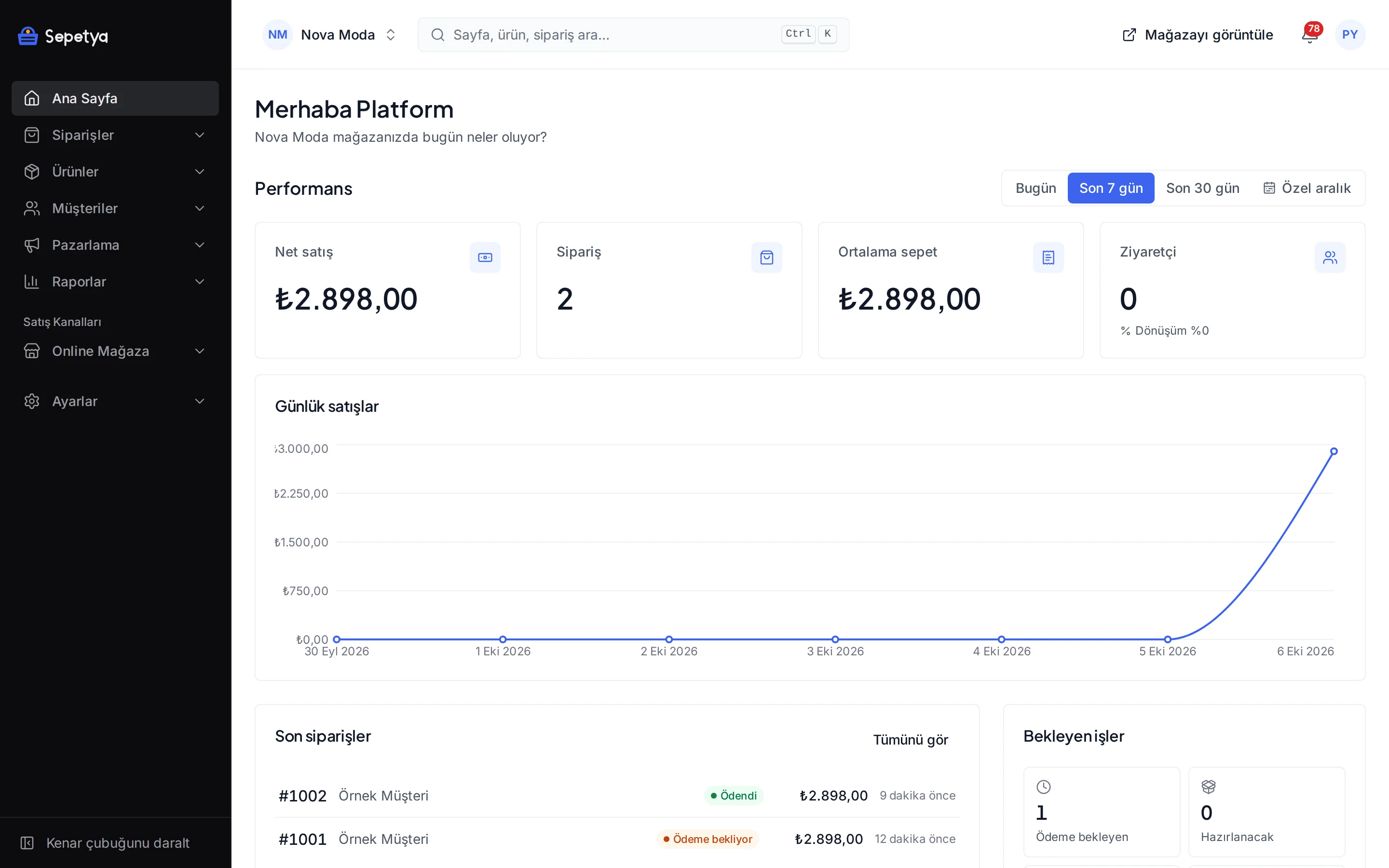
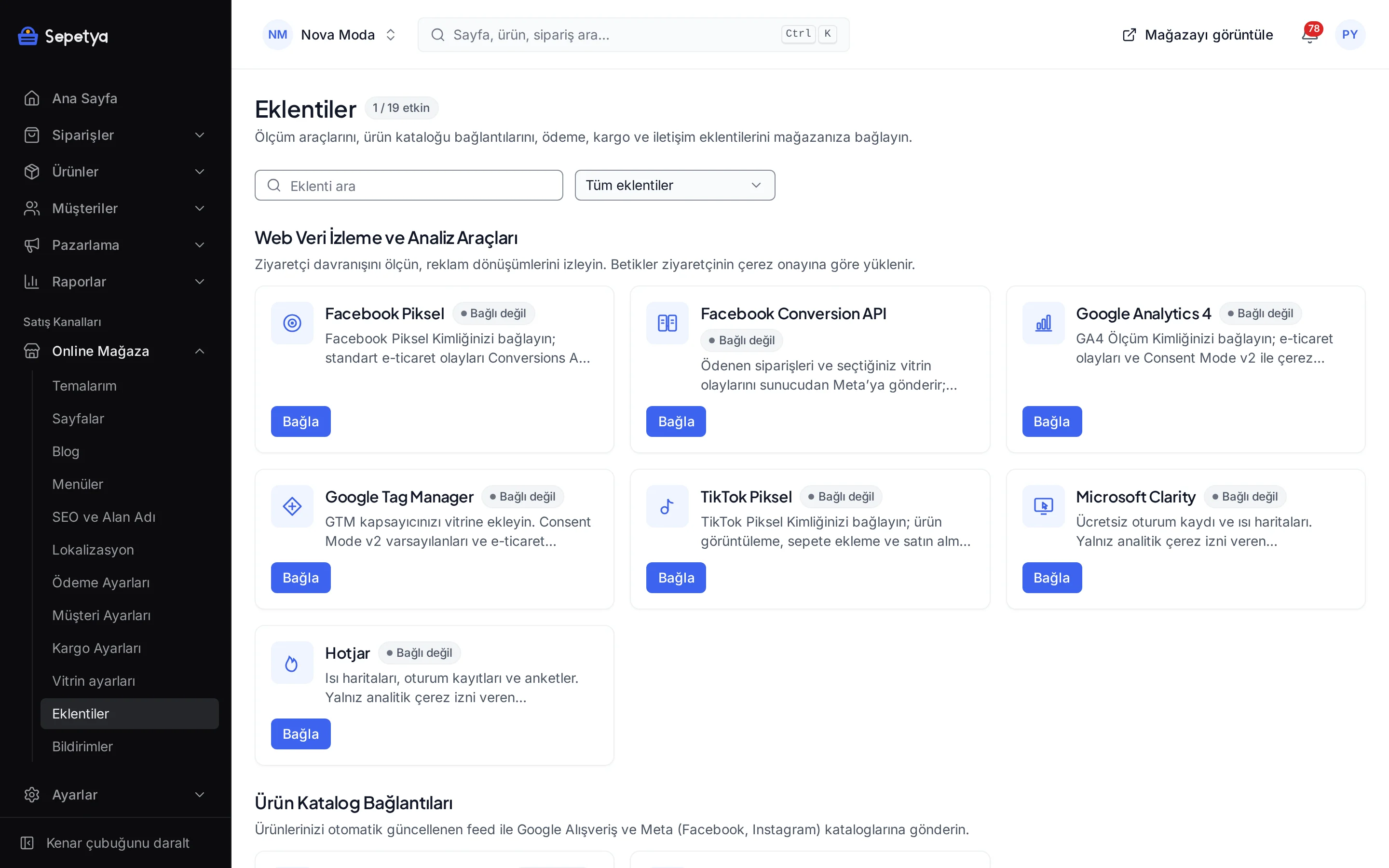
On the Apps page, in the Web Tracking and Analytics Tools group, click Connect next to Google Tag Manager.
- Step 3: 3
Enter the ID and the consent category
Paste the container ID and choose the cookie consent category, then click Save and activate.
- Step 4: 4
Build your tags in GTM
Define and publish your tags and triggers in the GTM interface; use the dataLayer events from the storefront (for example purchase) as triggers.
- Step 5: 5
Try it with Preview
Open GTM’s Preview mode with your store address; check that events arrive and that tags fire according to cookie consent.
Good to know
- Third-party tags inside the container can be blocked. The storefront’s content security policy (CSP) allows only Google hosts; if your container loads scripts from other vendors, the browser may block them. For tools such as Meta and TikTok, use the ready-made apps.
- The consent category decides loading. With the category set to “Marketing”, GTM does not load for a visitor who allowed only analytics cookies.
- Be careful when combining it with the GA4 app. If you set up the GA4 tag in both GTM and the GA4 app, events can be sent twice.
- Tag logic lives in GTM. You manage tags, triggers and variables in Google Tag Manager; the dashboard does not show the contents of your container.
The names Google and Google Tag Manager belong to their owner; this page does not imply a partnership or endorsement.
Google Tag Manager: frequently asked questions
Do Meta or TikTok tags inside the GTM container work?
The storefront’s content security policy declares only Google hosts, so scripts from other vendors can be blocked. The ready-made apps such as Meta Pixel, Meta Conversions API and TikTok Pixel declare their own hosts, so use those apps for these tools.
Which consent category should I choose?
Keep “Marketing” if your container fires ad tags (for example conversion tracking or remarketing). Choose “Analytics” only if it contains analytics tags alone. GTM loads only for visitors who allowed the category you choose.
In which format are the dataLayer events?
In GA4 e-commerce format: an ecommerce object holds fields such as items, value and currency. The item id is the variant id, which is the same id used in the product feeds.
Does GTM run if a visitor declines cookies?
No. If the visitor has not allowed the category you chose, GTM is not loaded. If consent is given later, GTM loads and the Consent Mode state is updated.
Connect it from the dashboard in a few steps
Set up your store and try the integration yourself during the trial; your keys only ever work for your own store.