Product feed · Facebook and Instagram
Meta Commerce Manager catalog integration
An auto-updating product catalog (CSV or XML) for Facebook and Instagram shops and dynamic ads; optionally changes reach the Meta catalog within minutes.
- CSV or XML feed
- Option to push changes instantly
- Matches Pixel product ids
What it does
CSV and XML feed
Your products are served as a CSV and an XML feed with one entry per sellable variant; you add the address in Commerce Manager as a scheduled feed.
Instant change push
Optionally, product, price, stock and campaign changes reach the catalog within a minute through the Catalog Batch API, without waiting for the feed download. This needs the catalog id and a system user access token.
Sync now and a status card
Resend every active product with one click; the status card on the app page shows pending changes and errors from Meta.
Campaign prices
Automatic percentage campaigns shown on the product page appear in the catalog as the sale price, with their validity window when they end.
Id that matches the Pixel
The product id in the catalog is the same id used in Meta Pixel and Conversions API events, so it matches for dynamic ads.
Feed options
Send out-of-stock products as “out of stock” or leave them out of the catalog; set the condition, the default brand and the category mapping.
How products reach the channel
Your catalogue is mapped onto the fields the channel expects, and you choose with filters which products are included. The feed follows changes in price, stock and images.
The language and the currency of the feed follow the sales channel settings you picked in the dashboard.
How to connect it in the dashboard
You enter your keys and ids in the store dashboard; secret values are stored encrypted and masked in the panel.
- Step 1: 1
Prepare a catalog in Commerce Manager
Create a catalog in Meta Commerce Manager or choose your existing one.
- Step 2: 2
Connect the app
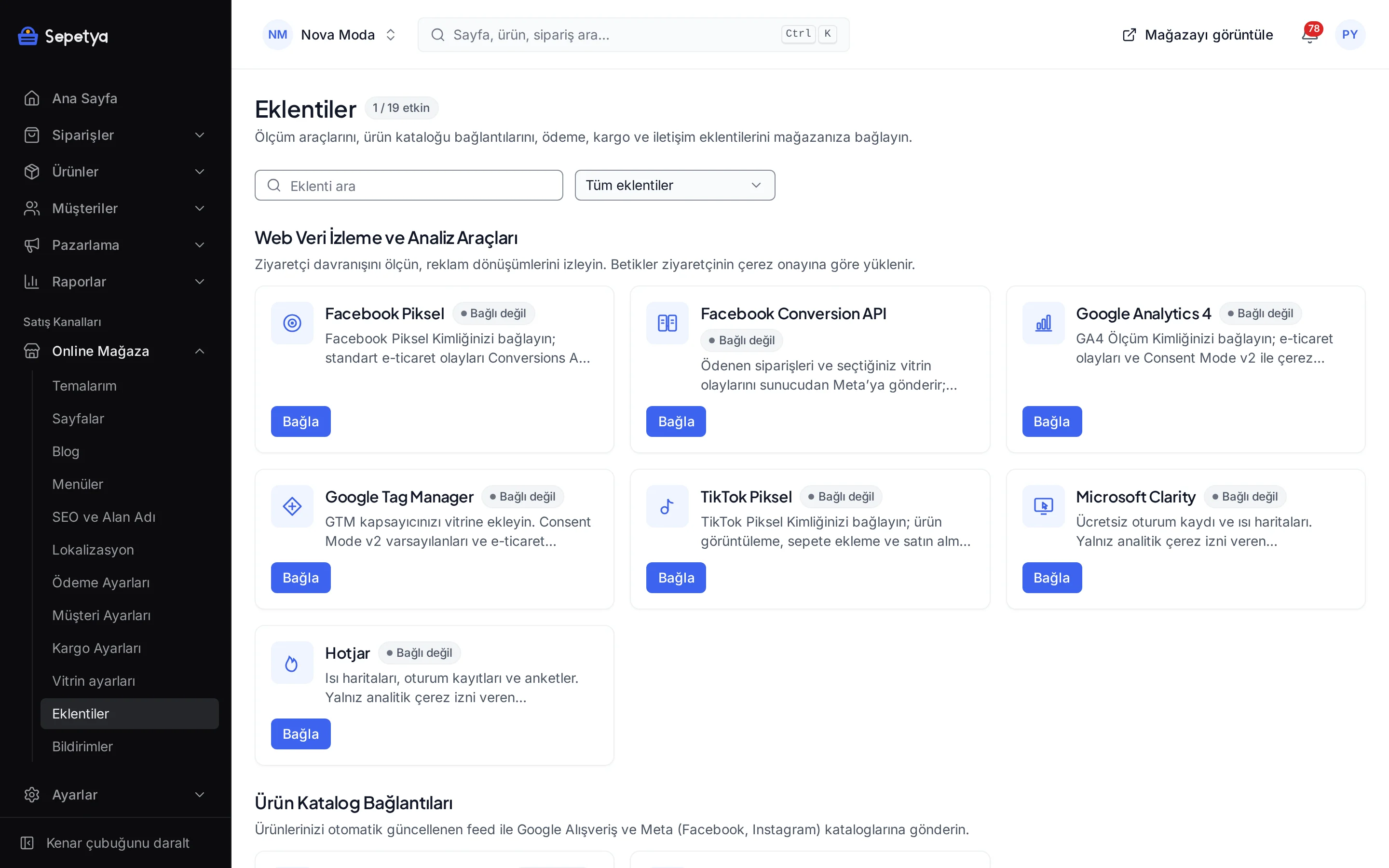
On the Apps page, in the Product Catalog Connections group, click Connect next to Meta Commerce Manager.
- Step 3: 3
Set the feed options
Choose how out-of-stock products are handled, the condition, the default brand, the Google product category and mapping, and whether campaigns are reflected; then click Save and activate.
- Step 4: 4
Add the feed
Copy the CSV (or XML) feed address from the Connect panel. In Meta Commerce Manager go to Catalog › Data sources › Data feed › Scheduled feed and enter the address.
- Step 5: 5
Turn on instant push (optional)
Turn on “Push changes to the Meta catalog instantly”; enter the Catalog ID (Commerce Manager › Catalog › Settings; digits only) and the access token you generate under Business Settings › System users › Generate token (with catalog_management). The token is stored encrypted.
- Step 6: 6
Test the connection and sync
The “Test connection” action reads the catalog’s name and product count; “Sync now” sends every active product.
Good to know
- Instant push is optional. With it off, the catalog is updated only when Meta downloads the feed on schedule.
- Meta applies request limits. If the catalog API’s rate limits are exceeded, pushes can be delayed; the status card shows pending changes.
- Approval and display decisions belong to Meta. Acceptance of your products or ad performance is not guaranteed; you manage shop and ad settings in Meta itself.
- The feed contains every priced variant of active products. Sales channel visibility is not applied to the feed.
- The access token belongs to a system user. You grant the catalog_management permission yourself; the token is stored encrypted and masked in the dashboard.
The names Meta, Facebook and Instagram belong to their owner; this page does not imply a partnership or endorsement.
Meta Commerce Manager catalog: frequently asked questions
Should I use the feed or the instant push?
The feed alone is enough and is the simplest route. If you want price and stock changes to appear faster in Meta, you can also turn on instant push; both can be used together for the same catalog.
Where do I get the catalog ID and the access token?
The catalog ID is listed under Commerce Manager › Catalog › Settings (digits only). You generate the access token under Business Settings › System users › Generate token, with the catalog_management permission.
Do product ids match the Pixel?
Yes. The product id in the catalog is the variant id and is the same as the product id in Meta Pixel and Conversions API events.
Is my access token safe?
The token is stored encrypted and masked in the dashboard, and used only for catalog operations. If you suspect a leak, revoke the token in Meta and enter a new one.
Connect it from the dashboard in a few steps
Set up your store and try the integration yourself during the trial; your keys only ever work for your own store.