Product feed · Google Shopping
Google Merchant Center integration
An auto-updating product feed (RSS 2.0) to list your products on Google Shopping. The feed URL is shown on the app page.
- Auto-updating feed
- Campaign prices as sale_price
- Google category mapping
What it does
Automatic product feed
Your active products are written to an RSS 2.0 (Google) feed with one entry per sellable variant. The feed URL can be copied in the dashboard once the app is active; the feed language and currency can be chosen.
Barcode and category
The barcode is sent as a GTIN or an MPN; you set the Google product category with a default and with “store category => Google category” mappings. Products without identifiers are marked identifier_exists: no.
Campaign prices
Automatic percentage campaigns shown on the product page are sent as the sale price (sale_price), with their validity window when they end, so the feed price stays consistent with the price on the product page.
Stock status
Send out-of-stock products as “out of stock” or “backorder”, or leave them out of the feed; products without an image can be skipped.
Brand and condition
Set a default brand for products without one and the product condition (new, refurbished, used).
How products reach the channel
Your catalogue is mapped onto the fields the channel expects, and you choose with filters which products are included. The feed follows changes in price, stock and images.
The language and the currency of the feed follow the sales channel settings you picked in the dashboard.
How to connect it in the dashboard
You enter your keys and ids in the store dashboard; secret values are stored encrypted and masked in the panel.
- Step 1: 1
Prepare your Merchant Center account
Open your Google Merchant Center account and verify and claim your store address according to Google’s rules.
- Step 2: 2
Connect the app
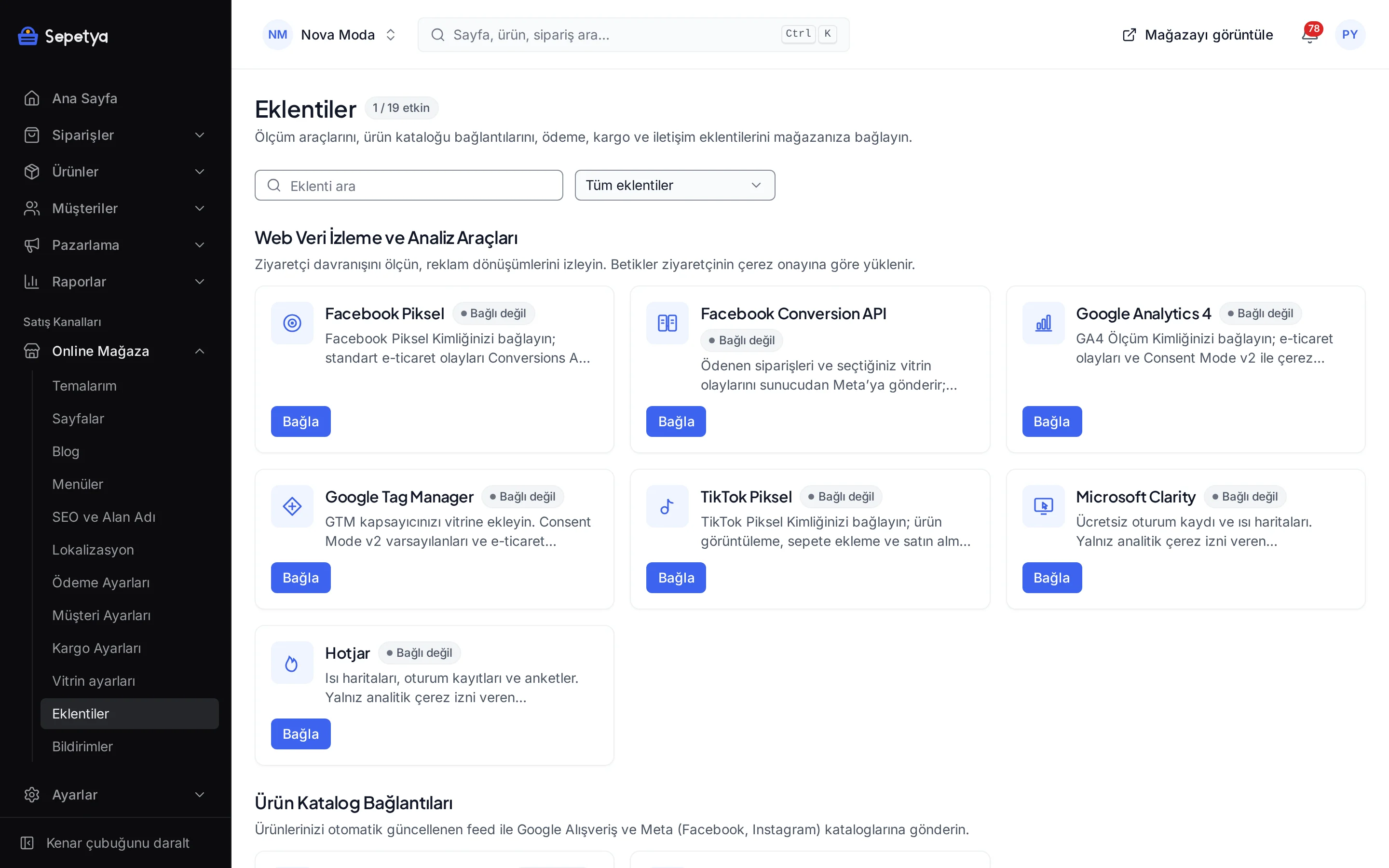
On the Apps page, in the Product Catalog Connections group, click Connect next to Google Merchant Center.
- Step 3: 3
Set the feed options
Choose the barcode type (GTIN or MPN), what happens to out-of-stock products, the condition, the default brand and Google category, the category mapping (one per line, such as “Dresses => 2271”) and whether campaigns are reflected; then click Save and activate.
- Step 4: 4
Copy the feed URL
Once the app is active, pick the feed language and currency in the Product feed URLs section of the Connect panel and copy the address.
- Step 5: 5
Add it to Merchant Center
In Google Merchant Center go to Products › Feeds › Add product source › Scheduled fetch and enter this address. The feed refreshes at least every 15 minutes.
- Step 6: 6
Watch for product issues
Review rejected or flagged products in Merchant Center and fix problems such as a missing image, an invalid GTIN, brand or category in your catalog.
Good to know
- The feed carries product data only. You set up shipping and tax in Merchant Center yourself.
- Approval and display decisions belong to Google. Acceptance of your feed, publication of products or ad performance is not guaranteed.
- Only automatic percentage campaigns shown on the product page reach the feed. Coupons and cart-conditional campaigns are not included.
- A valid GTIN is required. If the barcode is not a valid GTIN it is not sent as one; without brand and MPN the product is marked identifier_exists: no.
- The feed contains every priced variant of active products. Sales channel visibility is not applied to the feed; the response is cached and changes show up within 15 minutes.
The names Google and Google Merchant Center belong to their owner; this page does not imply a partnership or endorsement.
Google Merchant Center: frequently asked questions
How often is the feed updated?
The feed response is cached, so product, price or stock changes show up within 15 minutes. How often Merchant Center fetches the feed depends on your scheduled fetch setting there.
Why did Merchant Center reject my product?
The reason is shown in Merchant Center’s product diagnostics and the decision belongs to Google. The default brand, category mapping and “Skip products without an image” options in the feed settings help close common gaps.
How do discounted prices reach the feed?
Automatic percentage campaigns shown on the product page are sent as the sale price (sale_price), with their validity window when they end. If you turn off “Reflect campaigns in the catalog”, only the regular price is sent.
Does the feed include shipping costs?
No. The feed carries product information and product weight; you set up shipping and tax in Google Merchant Center.
Connect it from the dashboard in a few steps
Set up your store and try the integration yourself during the trial; your keys only ever work for your own store.