Analytics · Heatmaps and session recordings
Microsoft Clarity integration
Add the Clarity tag to your storefront for heatmaps and session recordings. Runs only for visitors who allow analytics cookies.
- Depends on analytics cookie consent
- Works with the Clarity Consent API v2
- Just the Project ID
What it does
Heatmaps and session recordings
Clarity offers heatmaps and session recordings that show where visitors click and how they move through your pages; the data is collected in your Clarity account.
Follows cookie consent
The script is loaded only for visitors who allow analytics cookies. Ad and analytics storage consent is passed on through the Clarity Consent API v2; if analytics consent is withdrawn, Clarity’s cookies are erased.
A single field
There is no setting other than the Project ID; the Clarity tag is added to the storefront pages.
How events are sent
Events in the storefront first pass through the cookie consent: if the visitor has not given marketing or analytics consent the event is not sent. With consent, the event goes to the tool you connected.
You choose which tool to connect and enter its ids in the store dashboard; you can switch it off whenever you like.
How to connect it in the dashboard
You enter your keys and ids in the store dashboard; secret values are stored encrypted and masked in the panel.
- Step 1: 1
Create a Clarity project
Create a project in Microsoft Clarity. Copy the Project ID from Clarity › Settings › Overview (lower-case letters and digits).
- Step 2: 2
Connect the app
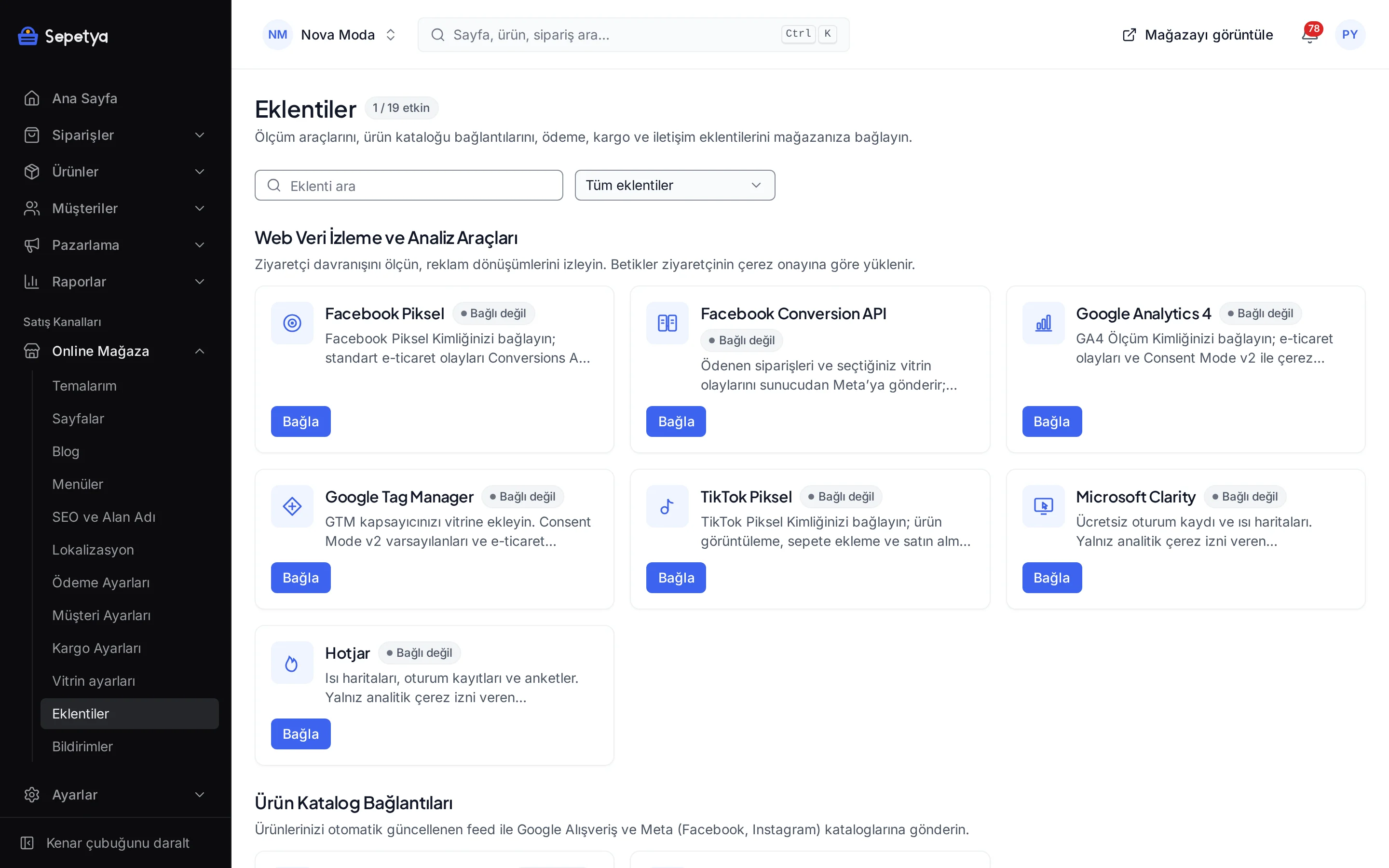
On the Apps page, in the Web Tracking and Analytics Tools group, click Connect next to Microsoft Clarity.
- Step 3: 3
Enter the ID and activate
Paste the Project ID and click Save and activate.
- Step 4: 4
Verify recording
Open your store and allow analytics cookies in the banner; after browsing a few pages, recordings start to appear in the Clarity dashboard.
Good to know
- Recordings live in Clarity. Heatmaps and session recordings are stored in your Clarity account under Microsoft’s terms; the platform neither stores them nor shows them in the dashboard.
- Session recordings can contain personal data. Masking sensitive fields in Clarity and naming Clarity in your privacy and cookie texts is your responsibility; this is not legal advice.
- It runs only for visitors who allow analytics cookies. The number of recordings stays below your visitor count.
- The platform’s own analytics is independent. The cookie-free storefront analytics under Reports › Traffic and analytics does not depend on Clarity.
The names Microsoft and Clarity belong to their owner; this page does not imply a partnership or endorsement.
Microsoft Clarity: frequently asked questions
Is Clarity free?
Microsoft Clarity’s terms and pricing belong to Microsoft and may change; see Clarity’s own site for current details. The platform only adds the Clarity tag to your storefront.
Are sessions of visitors who decline cookies recorded?
No. The script is loaded only for visitors who allow analytics cookies; for everyone else Clarity does not run at all.
Can I watch the recordings in the platform dashboard?
No. You view heatmaps and recordings in Clarity’s own dashboard; the platform dashboard does not show this data.
What happens when a visitor withdraws consent?
When analytics consent is withdrawn, Clarity’s cookies are erased and the consent state is passed on to Clarity.
Connect it from the dashboard in a few steps
Set up your store and try the integration yourself during the trial; your keys only ever work for your own store.