Analytics
Google Analytics 4 integration
Connect your GA4 Measurement ID: e-commerce events and Consent Mode v2 measurement that follows the visitor’s cookie choice.
- The browser script loads with cookie consent
- Standard e-commerce events
- Option to send sales from the server
What it does
E-commerce events
Page and product views, product lists, add and remove from cart, checkout start, shipping and payment info, purchase, search, sign-up and login events are sent in GA4’s recommended e-commerce format.
Consent Mode v2
Storage types start as “denied” and are updated as the visitor makes choices in the cookie banner. The script is loaded only for visitors who allow analytics cookies.
Send sales from the server
With the Measurement Protocol option on, the purchase event is sent from the server when the order is paid instead of from the browser, so late payments such as bank transfers are counted correctly.
Connection test
The “Test connection” action on the app page sends a sample purchase to Google’s validation server; it never reaches your reports.
How events are sent
Events in the storefront first pass through the cookie consent: if the visitor has not given marketing or analytics consent the event is not sent. With consent, the event goes to the tool you connected.
You choose which tool to connect and enter its ids in the store dashboard; you can switch it off whenever you like.
How to connect it in the dashboard
You enter your keys and ids in the store dashboard; secret values are stored encrypted and masked in the panel.
- Step 1: 1
Get your Measurement ID
Copy the Measurement ID starting with G- from Google Analytics › Admin › Data streams › Web stream.
- Step 2: 2
Connect the app
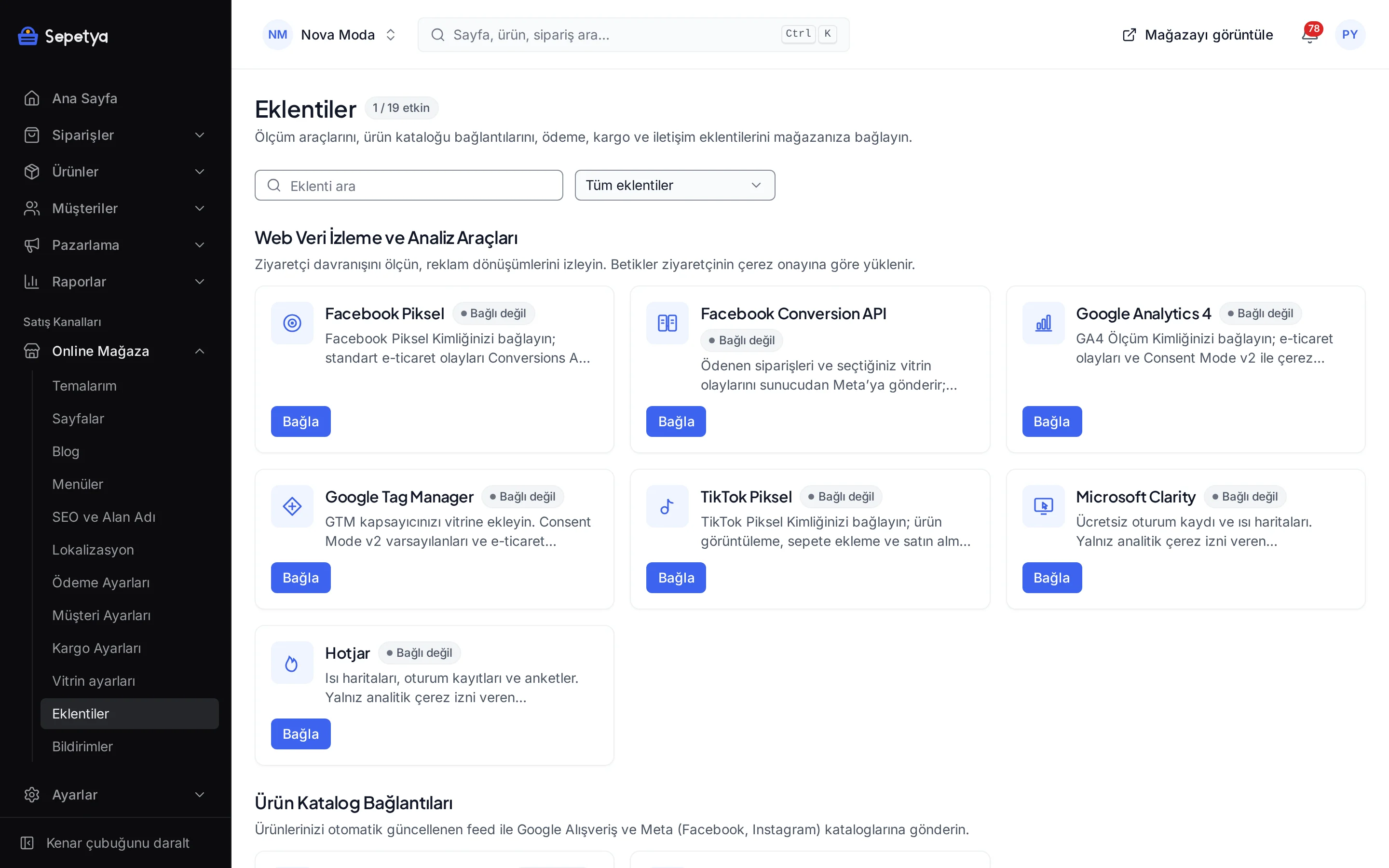
On the Apps page, in the Web Tracking and Analytics Tools group, click Connect next to Google Analytics 4.
- Step 3: 3
Enter the ID
Paste the ID into the GA4 Measurement ID field; its format (G-XXXXXXXXXX) is checked on save.
- Step 4: 4
Optionally send purchases from the server
If you turn on “Send sales from the server (Measurement Protocol)”, create a secret under Data stream › Measurement Protocol API secrets and enter it in the field; the secret is stored encrypted.
- Step 5: 5
Save and test the connection
Click Save and activate, then run the “Test connection” action on the app page.
- Step 6: 6
Check cookie consent
Open your store and allow analytics cookies in the banner; events start to appear in GA4.
Good to know
- GA4 runs only for visitors who allow analytics cookies. Visits by those who decline do not appear in GA4, so GA4 numbers can be lower than real traffic.
- The connection test does not check that the ID and the secret belong together. Google’s validation server does not verify the Measurement ID against the secret; the test result says so.
- With server-side sending on, the browser sends no purchase event. The purchase goes out from the server the moment the order is paid and is deduplicated by order id. This event is sent only for orders of visitors who allowed analytics cookies when ordering (with a pseudonymous id derived from the order instead of a visitor id, without session information, and with the advertising signals set by the marketing cookie choice). Orders from the dashboard, the API or marketplaces are not sent. Disclosing this in your privacy and cookie texts is your responsibility and this is not legal advice.
- You manage the GA4 account. The property, reports and goals live in Google; the platform’s own cookie-free storefront analytics works independently of GA4.
The names Google and Google Analytics belong to their owner; this page does not imply a partnership or endorsement.
Google Analytics 4: frequently asked questions
Can I use GA4 and Google Tag Manager together?
You can use both, but take care not to send the same events from two places: if you also add the GA4 tag to your GTM container, events can be counted twice. Usually the GA4 app or GTM alone is enough.
What if a visitor declines cookies?
The GA4 script is not loaded and that visit does not appear in GA4. If the visitor allows cookies later, measurement starts. Even with server-side purchases on, the purchase of a visitor who had not allowed analytics cookies when ordering is not sent from the server.
Why is a purchase not counted twice?
GA4 deduplicates purchases by order id (transaction_id). With server-side sending on, the browser never sends the purchase event; it goes out from the server only when the order is paid.
What does the connection test do?
It checks the format of your Measurement ID and the secret, sends a sample purchase to Google’s validation server and shows any warnings it returns. The event never reaches your real reports.
Connect it from the dashboard in a few steps
Set up your store and try the integration yourself during the trial; your keys only ever work for your own store.