Payments · Bank transfer
Bank transfer integration
Customers pay by bank transfer to your accounts. Orders stay awaiting payment until you confirm the transfer.
- Installed in every new store
- IBANs are checked with their check digits
- A transfer discount can be set
What it does
Several bank accounts
Add as many accounts as you need, each with bank name, account holder, IBAN, branch and account currency. Customers see the accounts that match their order currency.
IBAN validation
The check digits of the TR IBANs you enter are validated on save, so a mistyped IBAN never reaches a customer as payment instructions.
Instructions on the page and by e-mail
The order page and the order e-mail show the amount, the order number and the account details. You can rewrite the instruction text in your own words with the {amount} and {order} placeholders.
Transfer discount
In the payment method rule you can set a transfer discount as a percentage or an amount; it is deducted from the order total and stated in the instructions.
Reminders and confirmation
A ready-made reminder automation covers orders awaiting a transfer; it stops when the payment arrives or the order is cancelled. When you see the payment, you mark the order as paid in the dashboard.
How a payment flows
The order is created awaiting payment and the customer pays outside the store. Once you have received the payment you confirm the order in the dashboard and the order flow continues from there.
No card details pass through the platform with this method; you set the conditions, the description and when it is offered from the store dashboard.
How to connect it in the dashboard
You enter your keys and ids in the store dashboard; secret values are stored encrypted and masked in the panel.
- Step 1: 1
Open the app
The bank transfer app comes installed in every new store. On the Apps page, open Bank Transfer in the Payment Methods group.
- Step 2: 2
Add your bank accounts
For each account enter the bank name, the account holder and the IBAN; branch and currency are optional (the default is TRY). The IBAN is validated on save.
- Step 3: 3
Edit the payment instructions
Change the default instruction text if you like. {amount} is replaced with the amount due and {order} with the order number.
- Step 4: 4
Save and activate
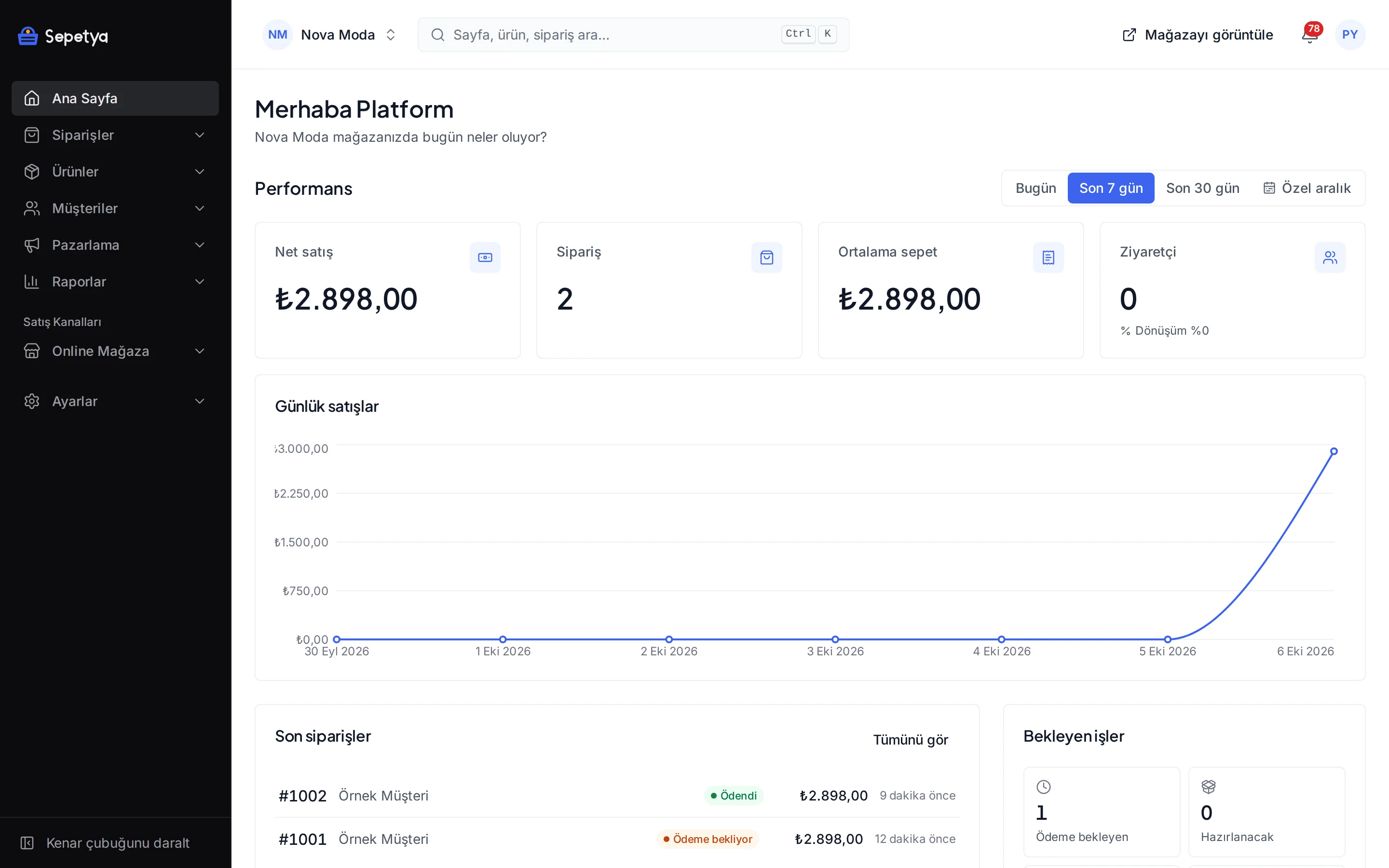
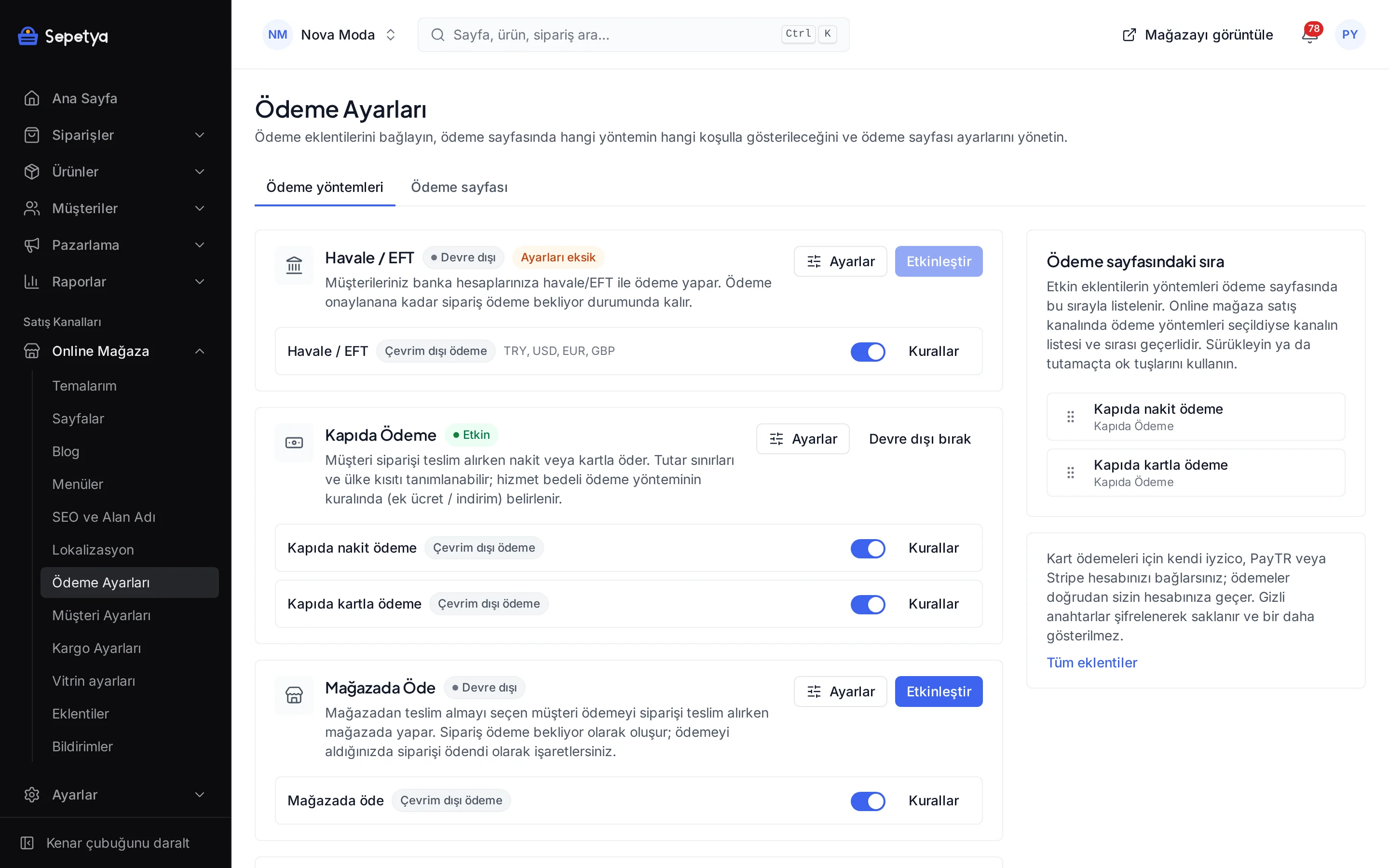
Click Save and activate. On Online store › Payment settings, set the method’s name, its order and any transfer discount.
- Step 5: 5
Confirm the payment
When the transfer reaches your account, open the order and confirm the payment (mark as paid). The customer gets a payment e-mail and the order moves on to fulfilment.
- Step 6: 6
Turn on the reminder (optional)
On Marketing › Automations, turn on the bank transfer reminder recipe; customers who have not paid receive an automatic reminder.
Good to know
- Transfers are not matched automatically. You follow your bank movements and confirm the payment in the dashboard; there is no automatic reconciliation with banks.
- Only TR IBANs can be added. Accounts can be in TRY, USD, EUR or GBP; customers see only the accounts that match their order currency.
- The discount is a setting of the payment method rule, not of the app. You define the transfer discount in Payment settings; the cart, the payment step, the contracts and the e-mails show the same amount.
- The reminder is a separate automation. Unless you turn it on, customers awaiting a transfer receive no automatic reminder.
Bank transfer: frequently asked questions
How will I know the payment has arrived?
You follow it in your bank. When the transfer reaches your account, you mark the order as paid in the dashboard; there is no bank integration, so payments are not matched automatically.
Can I give a discount for bank transfers?
Yes. In Online store › Payment settings, add a percentage or amount discount to the bank transfer rule. Customers see the discount before choosing the method; it is deducted from the order total.
Can I add an account in a foreign currency?
Accounts in TRY, USD, EUR and GBP can be added, but the IBAN must start with TR. Customers see only the accounts that match their order currency.
What if the customer never pays?
The order stays awaiting payment. If you turned on the bank transfer reminder automation, the customer receives reminders until the payment arrives or the order is cancelled; you can also cancel the order yourself in the dashboard.
Connect it from the dashboard in a few steps
Set up your store and try the integration yourself during the trial; your keys only ever work for your own store.