Payments · Cash on delivery
Cash on Delivery integration
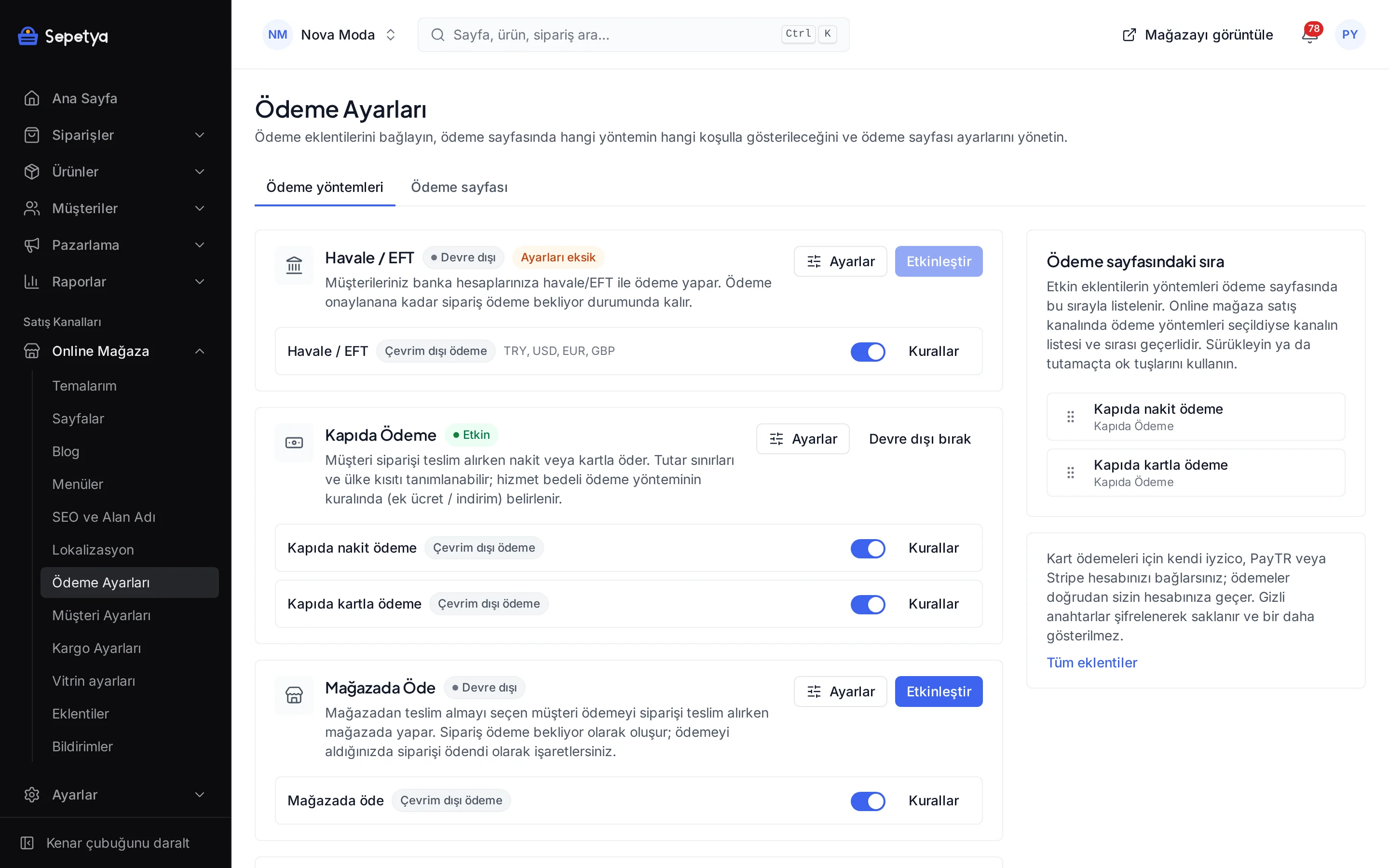
Customers pay in cash or by card when the order is delivered. Set order amount limits and country restrictions and add a service fee.
- Installed in every new store
- Cash and card options
- Amount and country limits
What it does
Cash and card on delivery
Turn cash on delivery and, if your carrier offers card terminals at the door, card on delivery on or off separately.
Service fee
In the payment method rule you can define a named surcharge; the fee appears with the same amount in the cart, the payment step, the contracts and the e-mails.
Amount and country limits
Set the minimum and maximum order amount and the allowed countries (as ISO codes); cash on delivery appears only for orders that meet these conditions.
Note to the customer
Write your own note explaining what happens at delivery; if you leave it empty, the default text is used.
Confirm payment in the dashboard
After delivery, when you have received the payment, you mark the order as paid; the customer receives a payment e-mail.
How a payment flows
The order is created awaiting payment and the customer pays outside the store. Once you have received the payment you confirm the order in the dashboard and the order flow continues from there.
No card details pass through the platform with this method; you set the conditions, the description and when it is offered from the store dashboard.
How to connect it in the dashboard
You enter your keys and ids in the store dashboard; secret values are stored encrypted and masked in the panel.
- Step 1: 1
Open the app
The cash on delivery app comes installed in every new store. On the Apps page, open Cash on Delivery in the Payment Methods group.
- Step 2: 2
Choose the payment types
Tick cash on delivery and/or card on delivery; at least one must be on.
- Step 3: 3
Set the limits
Enter the currency (default TRY), the minimum and maximum order amount and the allowed countries (for example TR). An empty country field means all countries; an empty or 0 maximum means no upper limit.
- Step 4: 4
Write the note to the customer (optional)
Add a note on how to pay at delivery; if you leave it empty, the default text is shown.
- Step 5: 5
Save and define the service fee
Click Save and activate. On Online store › Payment settings, open the cash on delivery rule and enter the service fee under Surcharge / discount.
- Step 6: 6
Confirm the payment after delivery
When the payment reaches you from your carrier or at the door, mark the order as paid in the dashboard.
Good to know
- The order is created awaiting payment. Collection follows your arrangement with the carrier; the platform does not collect money, you confirm the payment.
- Card on delivery needs your carrier’s card terminal service. The platform does not check this; it only shows the option to customers.
- It is offered only in the currency you choose. By default cash on delivery appears for Turkish lira orders, and the amount limits use that currency.
- The service fee is a setting of the payment method rule, not of the app. You define it in Payment settings.
Cash on Delivery: frequently asked questions
How do I add a cash on delivery fee?
On Online store › Payment settings, open the cash on delivery rule and enter a named surcharge (amount or percentage) under Surcharge / discount. The fee is visible in the cart and before the method is chosen, and is included in the order total.
Can I offer it only for certain amounts?
Yes. Set a minimum and a maximum order amount; cash on delivery appears only for orders within that range. You can also add a country restriction.
What do I need for card on delivery?
Your carrier must offer a card terminal at the door. The platform does not take card payments; it only shows the option to the customer and records it on the order.
How do I record that the payment was received?
You confirm the payment from the order’s payment card (mark as paid). The order moves to paid and the customer receives a payment e-mail.
Connect it from the dashboard in a few steps
Set up your store and try the integration yourself during the trial; your keys only ever work for your own store.