Payments · Card processing
iyzico integration
Accept card and instalment payments with the iyzico checkout form. Card data never touches your store.
- Connects to your own iyzico account
- Instalment table and instalment choice
- Keys are stored encrypted
What it does
Single payments and instalments
Customers pay with a credit or debit card. The instalment options your iyzico account offers for the card are shown, and you can limit which instalment counts (1–12) appear.
Instalment table and picker
Show an instalment table by card programme on product pages and let customers pick an instalment at checkout from the first digits of their card. Only the first digits of the card are used for the lookup; the full card number never reaches the platform.
Card data never reaches your store
The card number, expiry date and security code are entered on the iyzico payment form and never reach the platform. iyzico performs the 3-D Secure verification.
Redirect or embedded form
Open the payment form on the iyzico page or show it inside your own checkout page; you switch between the two in the settings.
Card brand rules
Turn Visa, Mastercard, American Express and Troy on or off one by one in the payment method rule; only the marks of the brands that are on appear at checkout.
Full and partial refunds from the dashboard
When you start a refund from the order screen, the amount goes back to the cardholder through iyzico. Partial and repeated refunds are tracked so they never exceed what was paid.
How a payment flows
The customer completes the payment step in the storefront; when the provider reports the result the order is marked as paid and the order flow starts.
The account is opened in your name, so the money goes straight to your account. You enter the provider keys in the store dashboard; secret values are stored encrypted and masked in the panel.
How to connect it in the dashboard
You enter your keys and ids in the store dashboard; secret values are stored encrypted and masked in the panel.
- Step 1: 1
Prepare your iyzico account
Sign your merchant agreement with iyzico. Commission rates and the payout schedule depend on your contract with iyzico; iyzico pays out directly to you.
- Step 2: 2
Get your keys
Copy your API key and secret key from the iyzico merchant panel under Settings › Company settings. Use the test (sandbox) keys for your first try.
- Step 3: 3
Connect the app
Open the Apps page in the store dashboard. In the Payment Methods group, click Connect next to iyzico.
- Step 4: 4
Enter your details
Fill in the API key and Secret key fields; the secret key is stored encrypted. Optionally choose the allowed instalment counts and how the payment form is displayed, then click Save and activate. The keys are verified against iyzico when you save.
- Step 5: 5
Try it in the test environment
With the sandbox option on, place a trial order and complete the payment with iyzico’s test cards. No real card is charged.
- Step 6: 6
Go live and tune the method
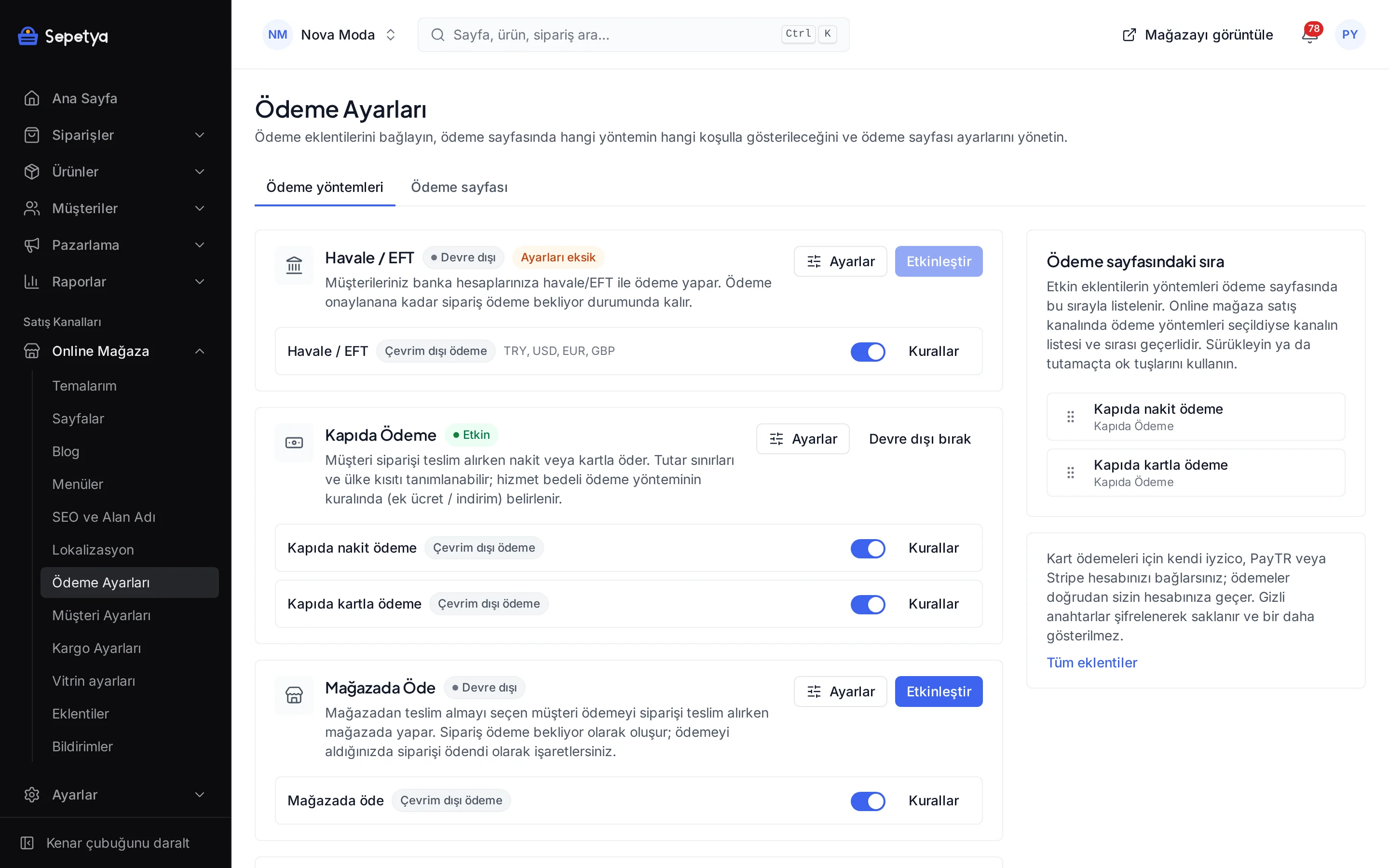
Turn the sandbox off and enter your live keys. On Online store › Payment settings, set the method’s name, order, country and amount conditions and any surcharge or discount.
Good to know
- You need an iyzico account. Account opening, approval, commissions, instalment rates and the payout schedule depend on your contract with iyzico. The platform is not a payment institution and never holds your money.
- Instalments are Turkish lira only. The instalment table and picker appear for TRY orders; the iyzico form can also take single payments in USD, EUR, GBP, NOK and CHF.
- If you turn a card brand off, the payment step asks for the first 8 digits of the card. The iyzico form offers no brand restriction, so a disabled brand is refused before the order is created.
- No notification address to enter. iyzico reports the result of every payment to a return address sent with each request; you do not define a webhook in the iyzico panel.
- It sits next to other methods. Bank transfer and cash on delivery are separate apps and can appear beside iyzico on the same payment page.
The name iyzico belongs to its owner; this page does not imply a partnership or endorsement.
iyzico: frequently asked questions
What if I do not have an iyzico account yet?
Opening an account and getting approved is iyzico’s process; the platform plays no part in it. Once your account is ready, enter your API key and secret key in the dashboard. While you wait you can start selling with bank transfer and cash on delivery.
Can I limit the instalment options?
Yes. Enter comma-separated numbers in the Allowed instalments field (for example 1,2,3,6; 1 means a single payment). If you leave it empty, every instalment your iyzico account offers for the card is shown. The product page table and the payment step show only the counts you allow.
Are real payments taken in the test environment?
No. While the test environment is on, requests go to iyzico’s sandbox and no real card is charged. When you go live, turn the option off and enter your live keys.
How do I refund an order?
On the refund screen of the order you pick the items and the amount; refunds of payments taken through iyzico are sent to iyzico. If iyzico declines a refund, you can record it manually.
Connect it from the dashboard in a few steps
Set up your store and try the integration yourself during the trial; your keys only ever work for your own store.