Payments · Pay in store
Pay in Store integration
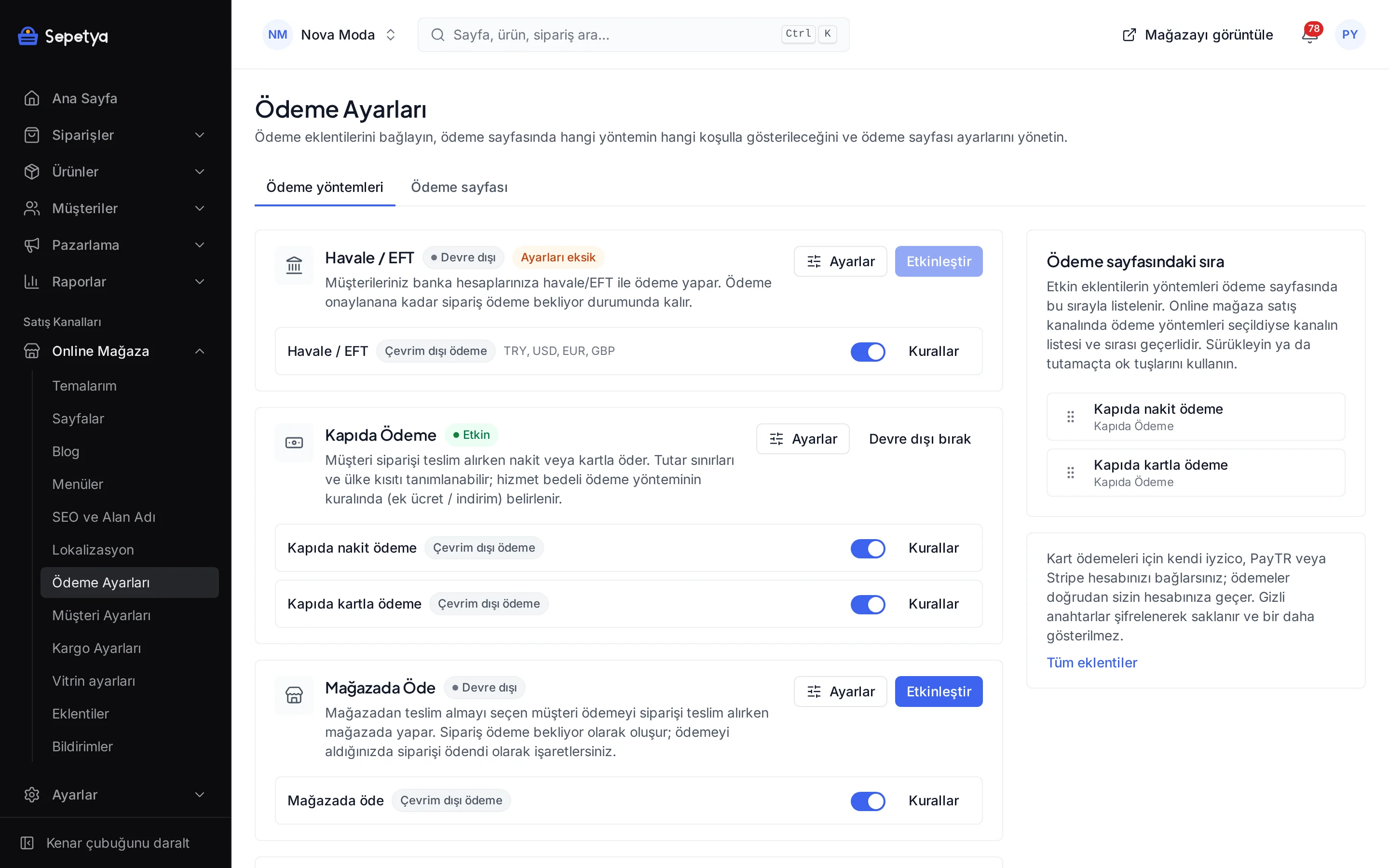
Customers who choose to collect their order in your store pay when they pick it up.
- Installed in every new store
- Offered only for in-store pickup
- Cash and card
What it does
Only for in-store pickup
The method is offered only when the customer chooses a pickup point; it never appears for shipped orders.
Cash and card
Turn cash and card payment in store on or off separately; at least one must be on.
Note to the customer
Edit the note shown on the order page and in the order e-mail; {order} is replaced with the order number.
Ready-for-pickup notice
When an in-store pickup order is ready, the customer receives a “ready for pickup” e-mail.
No timeout cancellation
The order is created awaiting payment and is not cancelled on timeout; when you receive the payment you mark it as paid.
How a payment flows
The order is created awaiting payment and the customer pays outside the store. Once you have received the payment you confirm the order in the dashboard and the order flow continues from there.
No card details pass through the platform with this method; you set the conditions, the description and when it is offered from the store dashboard.
How to connect it in the dashboard
You enter your keys and ids in the store dashboard; secret values are stored encrypted and masked in the panel.
- Step 1: 1
Set up in-store pickup
On Online store › Shipping settings, define the in-store pickup rate and the stock locations that act as pickup points.
- Step 2: 2
Open the app
The Pay in Store app comes installed in every new store. On the Apps page, open Pay in Store in the Payment Methods group.
- Step 3: 3
Choose the accepted payments
Tick cash and/or card; at least one must be on.
- Step 4: 4
Write the note to the customer (optional)
Add a note on how to collect the order. {order} is replaced with the order number; if you leave it empty, a default text for the payments you accept is used.
- Step 5: 5
Save and activate
Click Save and activate. On Online store › Payment settings you can set the method’s name and its order.
- Step 6: 6
Confirm the payment at pickup
When the customer collects the order and pays, mark the order as paid in the dashboard.
Good to know
- It is offered only for in-store pickup orders. The method cannot be chosen for shipped orders.
- This is not a point-of-sale system. The app lets you collect payment in the shop for an order placed online; you take card payments with your own terminal and the platform does not collect money.
- No cash on delivery fee applies. No surcharge is defined for this method.
- You confirm the payment. If the customer never comes, the order is not cancelled automatically on timeout; you can cancel it in the dashboard.
Pay in Store: frequently asked questions
What is the difference between pay in store and cash on delivery?
With cash on delivery the order is shipped and paid for at the door. Pay in store is offered only for in-store pickup orders and is paid in the shop; the cash on delivery fee does not apply.
What if the customer does not come to collect the order?
The order is not cancelled automatically on timeout. You can cancel it yourself in the dashboard and return the items to stock.
How does it work with several shops?
Define a stock location and pickup point for each shop; the customer chooses where to collect the order in the payment step.
Is this a point-of-sale system?
No. The app only lets you take payment in the shop for an order placed online; it offers no till, barcode scanning or in-store sales screen.
Connect it from the dashboard in a few steps
Set up your store and try the integration yourself during the trial; your keys only ever work for your own store.