Payments · Card processing
PayTR integration
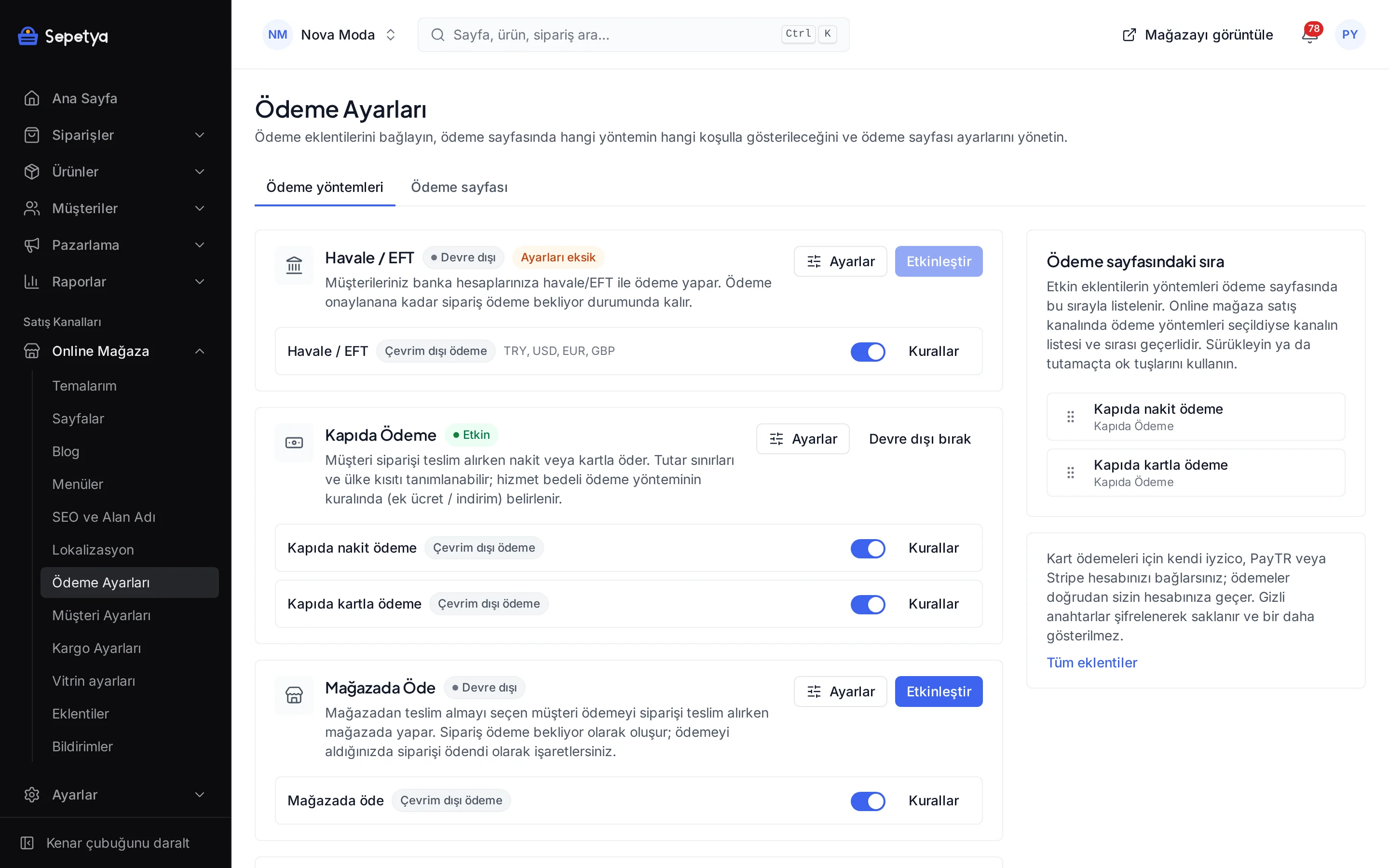
Accept card and instalment payments in your checkout with the PayTR iFrame. The result reaches the order through PayTR’s signed notification.
- Connects to your own PayTR account
- Instalment and interest settings
- Secret keys are stored encrypted
What it does
Single payments and instalments
The PayTR iFrame payment form opens inside your checkout page. You can cap the number of instalments or turn instalments off entirely.
Interest setting
Choose whether the customer or the store pays instalment interest, matching the setting in your PayTR panel; the product page table and the totals in the payment step follow it. The exact amount is shown in the PayTR payment form.
Card data never reaches your store
Card details are entered on the PayTR payment form. The result is applied to the order only after PayTR’s signed (hashed) notification has been verified.
Notification URL ready
Your store’s own notification URL is shown in the panel with a copy button; you enter it once in the PayTR panel. It is the same in test and live mode.
Card brand rules
The Visa, Mastercard and Troy marks appear at checkout; you can turn brands off in the payment method rule.
Refunds from the dashboard
Start a full or partial refund from the order screen; it is sent to PayTR’s refund service.
How a payment flows
The customer completes the payment step in the storefront; when the provider reports the result the order is marked as paid and the order flow starts.
The account is opened in your name, so the money goes straight to your account. You enter the provider keys in the store dashboard; secret values are stored encrypted and masked in the panel.
How to connect it in the dashboard
You enter your keys and ids in the store dashboard; secret values are stored encrypted and masked in the panel.
- Step 1: 1
Prepare your PayTR account
Sign your merchant agreement with PayTR. Commission and payout schedule depend on your contract with PayTR.
- Step 2: 2
Get your merchant details
Get your Merchant id (merchant_id), Merchant key (merchant_key) and Merchant salt (merchant_salt) from the PayTR merchant panel.
- Step 3: 3
Connect the app
On the Apps page, in the Payment Methods group, click Connect next to PayTR.
- Step 4: 4
Give PayTR the notification URL
Copy the notification URL shown in the Connect panel. Paste it into the Bildirim URL field under Destek & Kurulum › Ayarlar in the PayTR merchant panel and save. The address belongs to this store only; without it, orders stay awaiting payment.
- Step 5: 5
Enter the details and activate
Enter the merchant id, key and salt (key and salt are stored encrypted). No real payments are taken while test mode is on. Choose the instalment cap, the interest setting and the payment timeout, then click Save and activate.
- Step 6: 6
Test and go live
Place a trial order in test mode; the result reaches the order through the notification URL. When you are ready, turn test mode off.
Good to know
- You need a PayTR account. Account opening, approval, commission and the payout schedule depend on your contract with PayTR. The platform is not a payment institution and never holds your money.
- You must enter the notification URL in the PayTR panel yourself. Without it PayTR cannot report the result and even paid orders stay awaiting payment.
- Instalments are Turkish lira only. The instalment table appears for TRY orders; the PayTR form can also take single payments in USD, EUR, GBP and RUB.
- The interest setting must match your PayTR panel. The table in the store is a calculation; the exact amount is shown by the PayTR payment form.
- If you turn a card brand off, the payment step checks the brand from the first digits of the card; the PayTR iFrame form offers no brand restriction.
The name PayTR belongs to its owner; this page does not imply a partnership or endorsement.
PayTR: frequently asked questions
What happens if I do not enter the notification URL?
PayTR cannot report the payment result, so the order stays awaiting payment even if the customer has paid. The address is shown ready in the Connect panel and you enter it once in the PayTR panel.
Can I turn instalments off completely?
Yes. Turn on “Disable installments”, or cap the count with the “Maximum installments” field (0 means no limit; otherwise 2–12).
Who pays the instalment interest?
It is your choice. With “Customer” the interest is added to the total; with “Store” instalments are sold at the cash price. The choice must match the instalment setting in your PayTR panel.
Are real payments taken in test mode?
No. Real payments are not taken while test mode is on. The notification URL is the same in test and live mode; to go live you only turn test mode off.
Connect it from the dashboard in a few steps
Set up your store and try the integration yourself during the trial; your keys only ever work for your own store.