Payments · International cards
Stripe integration
Accept international card payments with Stripe Checkout. Requires a business registered in a country Stripe supports.
- Connects to your own Stripe account
- Payment page hosted by Stripe
- Verified with signed webhooks
What it does
International cards
Customers pay on a payment page hosted by Stripe; Visa, Mastercard, American Express and Discover Global Network cards are accepted. Any additional local methods depend on your Stripe account settings and the customer’s country.
Charged in the order currency
The amount is sent in the order currency; Stripe’s amount rules, including zero-decimal currencies such as JPY, are applied automatically.
Card data never reaches your store
Card details are entered on Stripe’s payment page. The result is applied to the order through webhooks whose Stripe-Signature is verified and by re-reading the session from Stripe after the payment.
Card brand rules
Turn Visa, Mastercard, American Express and Discover Global Network (Discover, Diners, JCB, UnionPay, Elo) off in the payment method rule; disabled brands are blocked on the Stripe page, including in Apple Pay and Google Pay.
Payments that settle later
For methods that do not settle at once, Stripe reports the outcome later; the order is updated when the success or failure notification arrives.
Full and partial refunds from the dashboard
Start a refund from the order screen; it is sent to Stripe. Refunds that do not complete at once are tracked as pending.
How a payment flows
The customer completes the payment step in the storefront; when the provider reports the result the order is marked as paid and the order flow starts.
The account is opened in your name, so the money goes straight to your account. You enter the provider keys in the store dashboard; secret values are stored encrypted and masked in the panel.
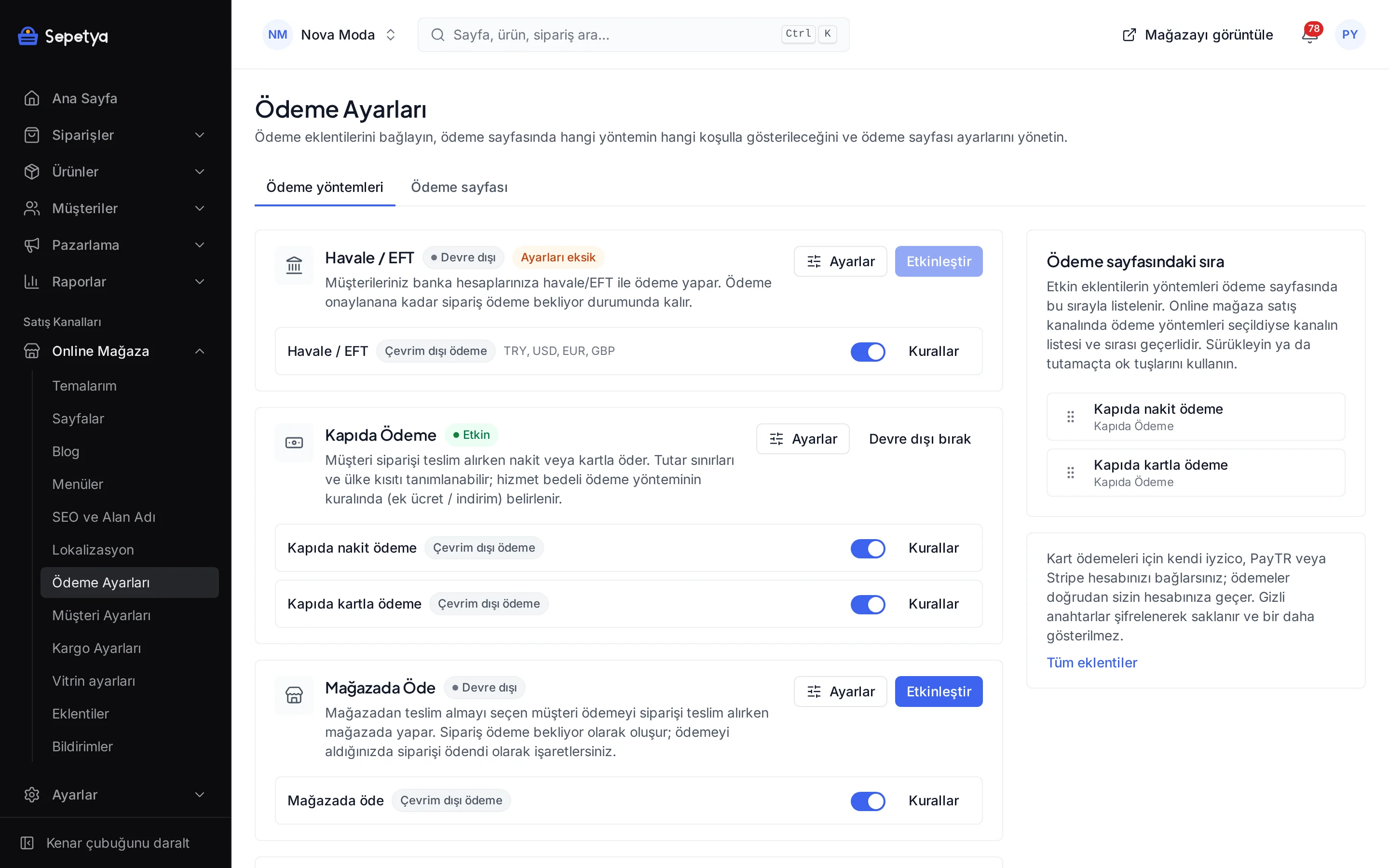
How to connect it in the dashboard
You enter your keys and ids in the store dashboard; secret values are stored encrypted and masked in the panel.
- Step 1: 1
Prepare your Stripe account
You need an active Stripe account, and your business must be registered in a country Stripe supports. Stripe pays out directly to you.
- Step 2: 2
Get your secret key
Copy the secret key (sk_… or restricted rk_…) from Stripe Dashboard › Developers › API keys. A test key works in the test environment, a live key in live mode.
- Step 3: 3
Connect the app
On the Apps page, in the Payment Methods group, click Connect next to Stripe.
- Step 4: 4
Create the webhook
Use the webhook address and event list in the Connect panel: in Stripe Dashboard open Workbench › Webhooks › Create an event destination, select Your account, tick the listed event types, choose Webhook endpoint as the destination and paste the address. Test and live mode have separate signing secrets, so create a separate endpoint for each.
- Step 5: 5
Enter the signing secret
Click Reveal secret on the webhook page, copy the whsec_… secret and paste it into the Webhook signing secret field; like the secret key it is stored encrypted. Click Save and activate; the key is verified against Stripe.
- Step 6: 6
Test and go live
Place a trial order with the test key and the test webhook. When you are ready, replace the secret key and the signing secret with the live values.
Good to know
- You need a Stripe account. Opening one requires a business registered in a country Stripe supports; check your eligibility with Stripe. Commissions and the payout schedule depend on your contract with Stripe. The platform is not a payment institution and never holds your money.
- The webhook is mandatory. The app cannot be activated without the webhook signing secret, and payments that settle later are processed only through the webhook.
- There is no instalment table or picker. Instalment features belong to the iyzico and PayTR apps; Stripe payments are single payments.
- There is no separate test switch. Enter a test key to run in test, a live key to run live.
- Stripe decides which methods appear. Which local methods show up beside cards depends on your Stripe account and the customer’s country.
The name Stripe belongs to its owner; this page does not imply a partnership or endorsement.
Stripe: frequently asked questions
Can I use Stripe from Türkiye?
That depends on Stripe’s own account rules: Stripe publishes the countries where accounts can be opened. The app works once you have a Stripe account. For card payments in Turkish lira you can use the iyzico or PayTR apps.
Why is the webhook needed?
Stripe reports payment results through webhooks; when a notification with a valid signature arrives, the order is marked paid. The webhook address and the event list are ready in the Connect panel.
How do I tell test and live mode apart?
Stripe issues separate test and live keys and webhook signing secrets. With a test key you run in test, with a live key you run live; the app has no separate test switch.
Which cards can my customers use?
Visa, Mastercard, American Express and Discover Global Network cards. You can turn off brands you do not want in the payment method rule; depending on your Stripe account settings, wallets and local methods may also be offered.
Connect it from the dashboard in a few steps
Set up your store and try the integration yourself during the trial; your keys only ever work for your own store.