Shipping · Tracking links
Turkish Carriers integration
Tracking links for Yurtiçi, Aras, DHL eCommerce (MNG), Sürat, PTT, UPS, DHL Express, HepsiJet, Kolay Gelsin, Trendyol Express and Sendeo, with optional flat or weight-based shipping rates.
- The tracking link reaches the customer
- You work with your own carrier contract
- Flat or weight-based rates
What it does
Tracking links
You enter the tracking number when you ship an order; the carrier’s tracking link is added to the customer’s e-mail and order page.
Built-in links and your own template
Yurtiçi Kargo, Aras Kargo, UPS and DHL Express have a built-in tracking link. For DHL eCommerce (MNG), Sürat, PTT, HepsiJet, Kolay Gelsin, Trendyol Express and Sendeo you enter the carrier’s tracking address yourself with the {tracking} placeholder. Carriers that are not in the list you define on Shipping settings › Carriers.
Flat or weight-based rates
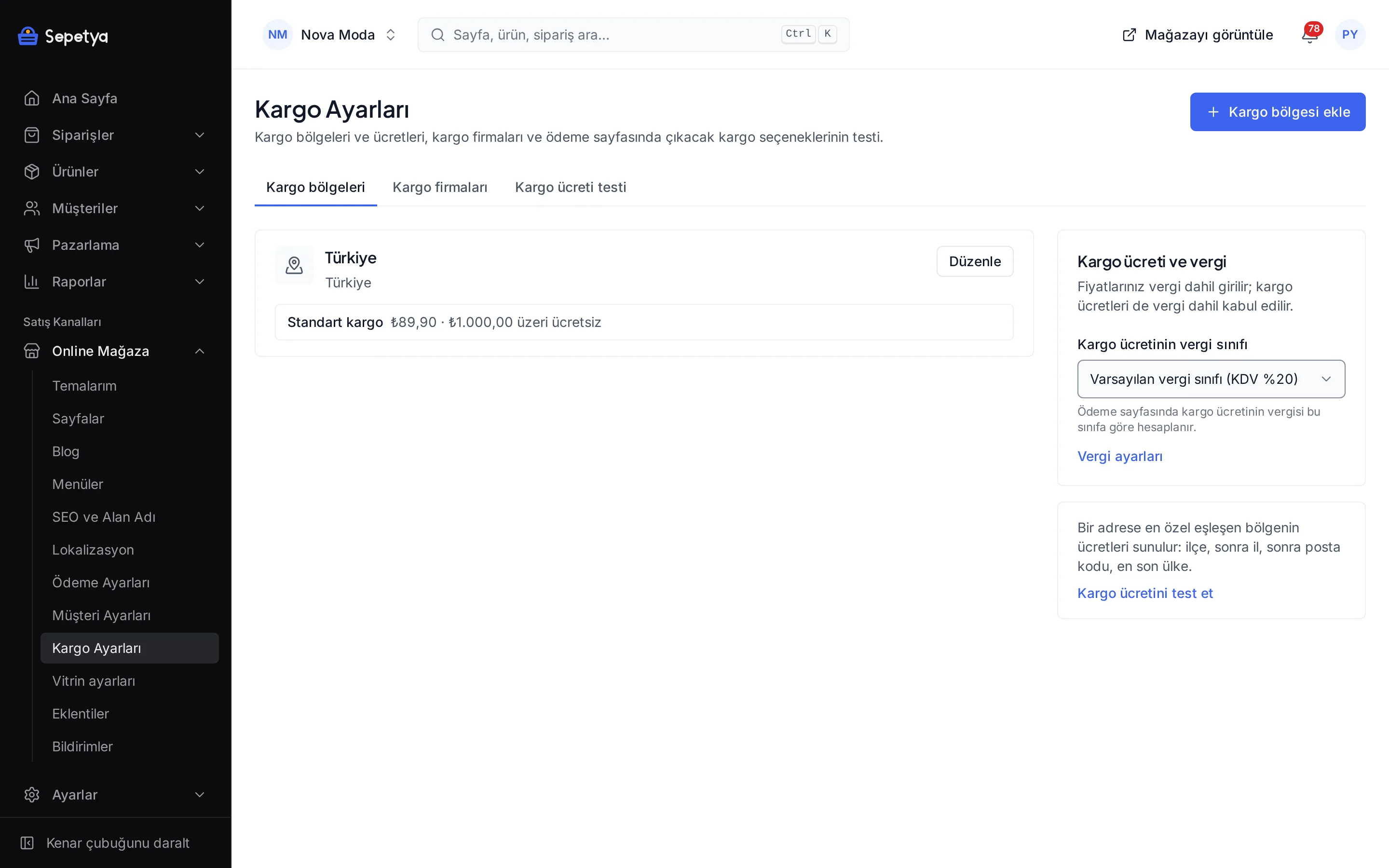
Set the shipping rate as one flat amount, as weight tiers (kg) or from the rates of your shipping zones; add a free-shipping threshold and an estimated delivery time (days).
Choice at checkout
Choose a default carrier; optionally mark other carriers as “offer at checkout” so customers can pick them.
Several carriers
Define as many carriers as you use and pick the carrier for each shipment when you fulfil an order.
Customer notification
When an order ships, the customer receives an e-mail with the tracking details; if you have an SMS app active and the shipping SMS turned on, an SMS goes out too.
How a shipment moves
When you have prepared the order you create the shipment from the dashboard; the carrier and the tracking number are written onto the order and the customer sees them in their account too.
You decide which carrier is offered, in which region and at what price, from the shipping settings.
How to connect it in the dashboard
You enter your keys and ids in the store dashboard; secret values are stored encrypted and masked in the panel.
- Step 1: 1
Arrange your carrier contract
You sign the contract with the carrier yourself; the platform offers no carrier agreement and does not create shipments on the carrier’s behalf.
- Step 2: 2
Connect the app
On the Apps page, in the Shipping Integrations group, click Connect next to Turkish Carriers.
- Step 3: 3
Add your carriers
Add the carriers you use. For carriers without a built-in link, enter the tracking address as https://…{tracking}; the tracking number replaces {tracking}.
- Step 4: 4
Choose the default carrier
Choose the default carrier. Optionally mark the carriers customers may pick at checkout.
- Step 5: 5
Choose the shipping rate
For the shipping rate choose Shipping zones, Flat rate or By weight. For By weight enter the tiers (up to kg and price), plus the free-shipping threshold and the estimated delivery range in days; then click Save and activate.
- Step 6: 6
Ship the order
When you create the shipment on the order screen, enter the carrier and the tracking number; the customer is notified.
Good to know
- It creates no labels or barcodes. The app does not connect to carrier systems; you open the shipment through the carrier’s own channel and enter the tracking number in the dashboard.
- Delivery status is not updated automatically. The app does not query the carrier; you mark statuses such as “delivered” in the dashboard or update them through the API.
- No carrier agreement is offered. Prices follow the contract you have with the carrier; the rates in the app are only the amounts you show customers in the store.
- Tracking addresses belong to the carriers. Carriers can change their sites; if a built-in link stops working, you can enter your own template for any carrier.
- Weight tiers use product weight. If you have not entered product weights, a tiered rate cannot be applied.
Carrier names are used only to identify them; they do not imply a partnership or endorsement.
Turkish Carriers: frequently asked questions
Can I create shipping labels or barcodes?
No. This app does not connect to carriers’ APIs and creates no labels or barcodes. You open the shipment through the carrier’s own channel and enter the tracking number on the order screen.
Can I add a carrier that is not in the list?
Yes. In the “Store carriers” section of Online store › Shipping settings › Carriers you can define a custom carrier with your own tracking address template (an address containing {trackingNumber}); the tracking link still reaches the customer.
How does the tracking link reach the customer?
When you ship the order with “notify customer” on, the tracking number and link go to the customer by e-mail and appear on the order page. If an SMS app is active, a shipping SMS can be sent too.
What if I want shipping rates by zone?
Choose “Shipping zones” for the shipping rate. The zone rates in Online store › Shipping settings then apply: flat, weight- or value-based rates, free shipping, local delivery and in-store pickup.
Connect it from the dashboard in a few steps
Set up your store and try the integration yourself during the trial; your keys only ever work for your own store.