Store tool · Support
WhatsApp Chat Button integration
Shows a floating WhatsApp button so customers can message you with a prefilled text.
- Sets no cookies
- Prefilled message, position and colour
- Mobile and desktop choice
What it does
One click to a WhatsApp chat
The button takes the visitor to a chat through WhatsApp’s wa.me link; the conversation opens with your prefilled message.
Appearance
Change the position (bottom right or bottom left), the bottom offset, the colour and the button label.
Device choice
Show the button on mobile only, on desktop only or on both.
Cookie-free, no connection until clicked
The button sets no cookies and makes no request to WhatsApp until the visitor clicks it.
Who gets a message, and when
Messages depend on the state of the order and on the settings you turned on; you edit the text the customer receives from the dashboard.
Commercial messages only go to customers who gave the required consent; informational order messages are separate from those.
How to connect it in the dashboard
You enter your keys and ids in the store dashboard; secret values are stored encrypted and masked in the panel.
- Step 1: 1
Prepare your number
Write the number you use on WhatsApp in international format without spaces (for example +905xxxxxxxxx).
- Step 2: 2
Connect the app
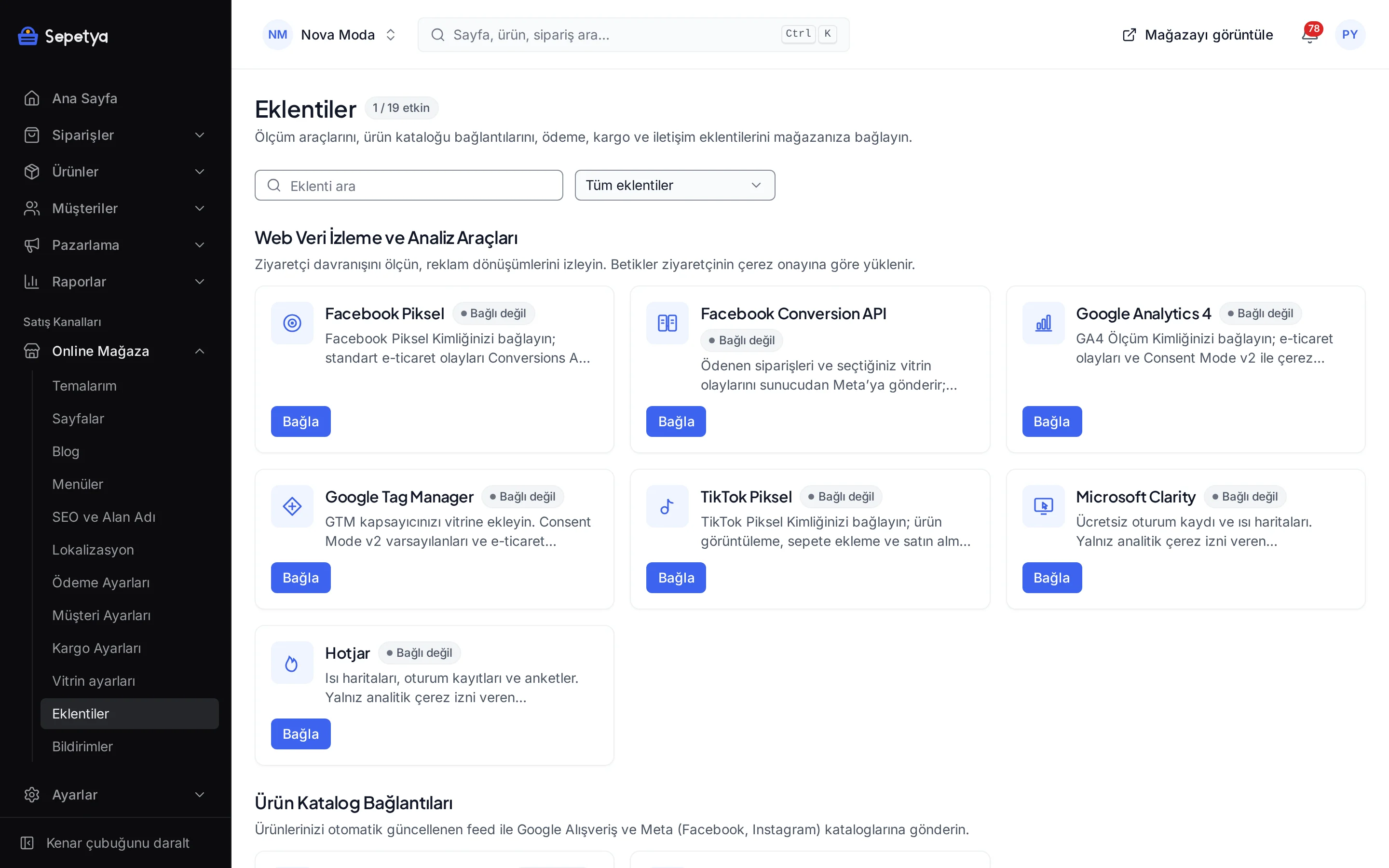
On the Apps page, in the Store Tools group, click Connect next to WhatsApp Chat Button.
- Step 3: 3
Fill in the fields
Enter the WhatsApp number, the prefilled message (up to 500 characters), the button label, the position, the bottom offset, the colour and the mobile/desktop choice; then click Save and activate.
- Step 4: 4
Check it on the storefront
Open your store and check that the button is where you expect and that the prefilled message appears.
Good to know
- This is not a WhatsApp Business API integration. The platform does not send or receive messages and does not store chat history; the conversation happens in the WhatsApp app between you and the customer.
- There are no automated WhatsApp notifications. Cart reminders and order notifications are not sent through WhatsApp; they go out by e-mail and SMS.
- Your number is part of the button’s link. Anyone who clicks the button sees the number, so use a business number.
- Answering is up to you. You decide when you reply to incoming messages.
The name WhatsApp belongs to its owner; this page does not imply a partnership or endorsement.
WhatsApp Chat Button: frequently asked questions
Can I see customer messages in the dashboard?
No. The conversation runs in the WhatsApp app; the platform neither receives nor stores messages.
Can I show the button on mobile only?
Yes. Turn off “Show on mobile” or “Show on desktop” as you prefer; you can also set the position and the bottom offset.
Is the button subject to cookie consent?
Because the button sets no cookies and makes no request to WhatsApp until a visitor clicks, it is shown without waiting for cookie consent. Mentioning the button in your cookie and privacy texts is your responsibility; ask your lawyer for a legal assessment.
How long can the prefilled message be?
Up to 500 characters. The message opens pre-typed in the WhatsApp chat when the button is clicked; the customer can edit it before sending.
Connect it from the dashboard in a few steps
Set up your store and try the integration yourself during the trial; your keys only ever work for your own store.